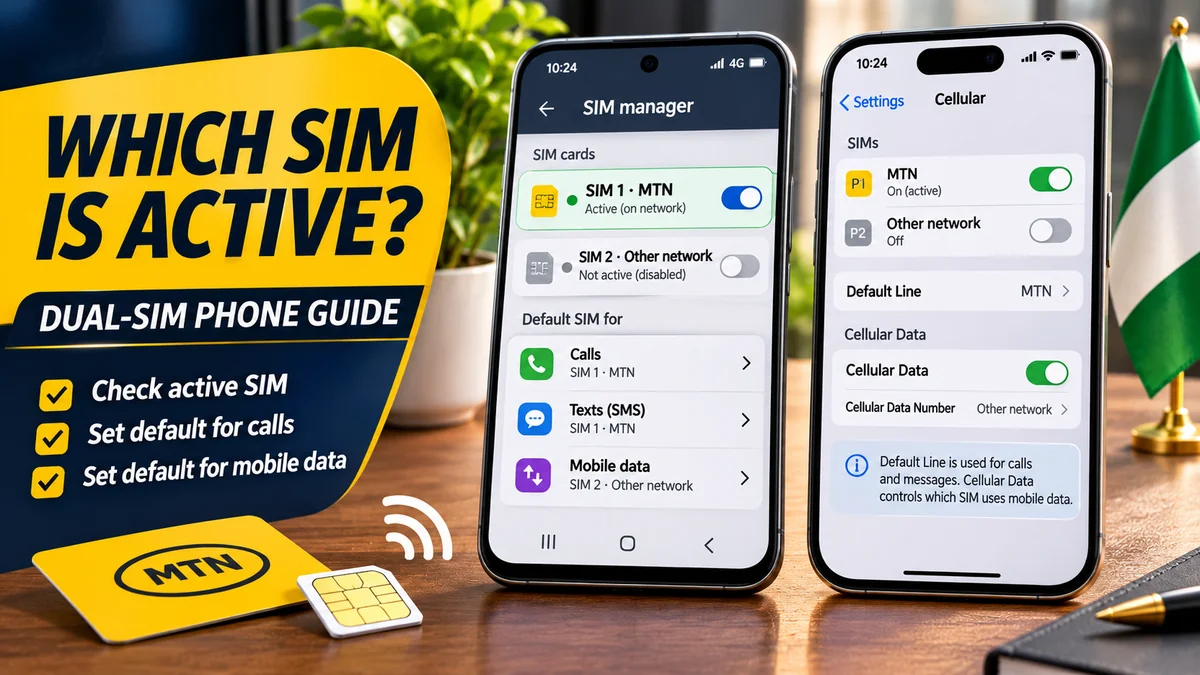
To confirm which SIM is active in a dual-SIM phone, open the phone's SIM settings and check which line is switched on. Then check the separate choices for calls, text messages and mobile data. On Samsung Galaxy, start at Settings → Connections → SIM manager; on a Google Pixel, use Settings → Network & internet → SIMs; and on an iPhone, go to Settings → Cellular or Mobile Service. If your aim is to work out which MTN number you are using, confirm the carrier and then make a test call or consult your verified MTN account rather than trusting a SIM 1 or SIM 2 label alone.
Many Nigerians use MTN alongside Airtel, Glo or another SIM, or combine a physical SIM with an eSIM. A phone can have two enabled lines but only one selected for mobile data. It might use MTN for calls and another network for internet access. That is why searching “how to check my MTN number” and checking the active SIM are related—but different—tasks.
This practical guide walks through Android, Samsung and iPhone settings, explains what “active” actually means, and shows how to avoid sending a call, SMS or mobile-data session through the wrong line. Research checked against official device-maker, MTN Nigeria and Nigerian Communications Commission guidance on 14 November 2026.
Quick check: find the active SIM in under a minute
| Phone | Where to look | What to confirm |
|---|---|---|
| Samsung Galaxy | Settings → Connections → SIM manager | SIM toggles and selected call, message and data defaults |
| Google Pixel | Settings → Network & internet → SIMs | Use SIM, network name, calls, texts and mobile data |
| Other Android | Settings → SIM cards / Mobile network / SIM management | Enabled SIMs and per-service preferences; exact labels vary |
| iPhone | Settings → Cellular / Mobile Service | Turn On This Line, Default Voice Line and Cellular Data |
If one SIM is switched off, it cannot normally be used for calls or mobile service until re-enabled. But an enabled SIM is not automatically the default SIM. Also, a SIM that is enabled in settings may still show “No Service” and fail to register on its carrier's network.
First understand the difference between enabled, connected and default
People often say “active SIM” when they mean one of four different things. Separating them prevents most dual-SIM mistakes.
- Installed: the physical SIM is inserted or an eSIM profile exists on the device. Installation alone does not mean it is switched on.
- Enabled: the SIM or cellular plan is turned on in phone settings. An enabled line may still have no network signal, a suspended account or an incomplete activation.
- Connected or registered: the phone has connected to the mobile network for that line. Signal indicators and the carrier's name are useful clues, but a successful call or SMS is a stronger test of the relevant service.
- Selected as default: the phone prefers that line for a particular function such as calls, SMS or mobile data. This is a choice, not proof that the other line is inactive.
For example, your MTN SIM could be enabled and connected, while your Airtel SIM provides mobile data. If you make a call from the default Airtel voice line, the recipient may see the Airtel number even though MTN is also active. Similarly, your phone might automatically use a previously selected SIM when calling a specific contact.
How to check the active SIM on a Samsung Galaxy phone
Samsung's dual-SIM support instructions describe enabling SIMs and selecting which one handles calls, text messages and mobile data. The exact layout can change with the Galaxy model, One UI version, region and network.
- Open Settings on the Galaxy phone.
- Tap Connections.
- Open SIM manager or, on some older software, SIM card manager.
- Locate the physical SIMs and any installed eSIMs. Look for the switch next to each line.
- Confirm that the MTN line is enabled. A switch set to on means the phone is permitted to use it; the carrier connection should still be checked separately.
- Review the Calls, Text messages and Mobile data selections, or a consolidated Primary SIM setting if your Galaxy version uses one.
- Open the relevant line's details and check the displayed carrier, label and network status.
Samsung's newer SIM and eSIM guide illustrates a Primary SIM setting used for default communication and data on some models. Do not assume your phone must have three separate default controls or that another Galaxy's screenshots will exactly match yours.
Change only what you intend to change
If you simply need to check which SIM is active, inspect the toggles without switching anything off. If you want outgoing calls to use MTN, change the call preference or select MTN in the Phone app before dialling. If you want internet traffic charged to MTN, choose MTN as the mobile-data line and confirm the selection before using data.
Samsung also explains that some versions let users choose SIMs from the Quick panel and from within the Phone or Messages app. These shortcuts can be convenient, but a SIM chosen for one call is not necessarily the new default for all later calls.
How to confirm the active SIM on Google Pixel
Google publishes specific Pixel dual-SIM instructions . They are particularly useful for understanding how calling, texting and data preferences operate independently.
- Open Settings → Network & internet → SIMs.
- Look for each available network and open the relevant line.
- Confirm the Use SIM switch is enabled if you want that line active.
- Under the primary SIM preferences, review Calls, Texts and Mobile data.
- If you regularly alternate voice lines, check whether Ask every time is offered for calls.
- Look for network connection status and test the intended line if you need proof that outgoing service works.
Google notes that only one SIM can be the default for mobile data at a time. Some Pixel models and carrier combinations support automatic data switching or additional call behaviour, so the actual data line in use can vary under certain conditions. Do not infer that a preferred-data label always describes every second of network traffic.
Google's mobile connectivity guide also recommends checking that both mobile data and Use SIM are on when investigating connection problems. That can be more useful than repeatedly removing and reinserting a SIM.
How to identify the active SIM on Tecno, Infinix, Xiaomi and other Android phones
Android manufacturers use different interface names. Instead of following an unverified universal menu path, search within the phone's Settings app for SIM, Mobile network, SIM cards or Mobile data.
On many devices, the relevant screen lists two lines, commonly labelled SIM 1 and SIM 2. Each may show a network name, an enabled switch and selections for voice or data. The available options depend on the device and Android version. Some manufacturers combine several functions into a preferred SIM selection, while others provide separate preferences.
Follow this practical check: confirm which line the phone identifies as MTN; inspect whether it is enabled; inspect the outgoing-call SIM; then inspect the mobile-data SIM. If the phone displays a phone number, verify it before using it for banking, identity forms or other important accounts. An Android setting may show “Unknown” or an outdated stored number even while the line can receive calls.
How to check which SIM is active on an iPhone
Apple's Dual SIM guidance explains that compatible iPhones can have two active numbers for calls and messages, but only one cellular-data network is used at a time, subject to switching features. The interface may say Cellular, Mobile Data or Mobile Service depending on region and software.
- Open Settings → Cellular or Mobile Service.
- Look under SIMs or the list of cellular plans.
- Tap the line you think is MTN and check its carrier and label.
- Confirm Turn On This Line is enabled if you expect to use it.
- Return to the Cellular screen and inspect Default Voice Line to see which number the phone normally uses for new calls.
- Open Cellular Data and check which line is selected for mobile internet.
- If Allow Cellular Data Switching is available and enabled, remember that data use can change under supported conditions.
Apple's iPhone settings guide describes separate controls to enable lines and choose voice and data defaults. A plan labelled “Primary”, “Secondary”, “Personal” or “Business” is a human-readable label, not reliable proof of the actual mobile operator or number.
Why the iPhone may call from the other number
An iPhone can remember which number was last used to call a particular contact, according to Apple. This means the Default Voice Line is not always the outgoing line for every saved contact. Before making a sensitive call, check the line displayed in the keypad or contact screen and switch deliberately if needed.
Messages may also use a selected line, while iMessage and FaceTime have their own account and number settings. A blue iMessage bubble is not a test of which cellular SIM would send a conventional SMS.
How to confirm whether SIM 1 or SIM 2 is your MTN number
SIM slot numbers describe hardware positions or device profiles; they do not inherently identify MTN, Airtel, Glo or any other carrier. An eSIM can also appear under a line label that does not match the position of a plastic SIM card.
Use a combination of evidence rather than trusting the slot name:
- Inspect the carrier name. Open SIM settings and look for the network displayed for each line. Confirm which entry is intended to be MTN.
- Inspect the activation toggle. The MTN line must be enabled if you expect it to provide mobile service.
- Check service. Look for signal or registration information, but remember that signal bars alone do not prove outgoing calls or texts will succeed.
- Place a controlled test call. Select the MTN line explicitly, call another phone you control and inspect the number that appears. Normal call charges may apply.
- Check the official MTN account. If you are already signed in to myMTN NG , inspect your SIM profile and linked numbers to confirm the intended account.
Do not assume an old MTN-looking prefix proves the current network. Mobile number portability can allow a subscriber to keep a number after changing operators; the NCC's harmonised service guide explicitly recognises mobile number portability as a separate telecom service.
How to check which SIM is handling calls, SMS and data
The most useful dual-SIM test is to check three separate functions. It is possible for all three to use different preferred lines on some phones.
| Service | Where to confirm it | What can mislead you? |
|---|---|---|
| Outgoing calls | Default voice/calls preference and selected line in the dialler | Per-contact previous-line selection or a call-time override |
| SMS | Text-message preference or selected line in Messages | A conversation may retain an earlier SIM selection |
| Mobile data | Data preference under SIMs or Cellular Data | Automatic data switching or data-during-calls features |
| Incoming calls | Network registration and a test call to each number | Dual-standby limitations while another line is in use |
If you want your MTN number to appear when calling a bank or business contact, check outgoing calls, not merely the mobile-data setting. If you want a particular data bundle to be used, inspect mobile data, not the SIM that sends SMS. An internet speed test alone is not a reliable network-identity check unless you know which data line was selected and that Wi-Fi is off.
What does “Dual SIM Dual Standby” mean?
Many dual-SIM phones operate as Dual SIM Dual Standby (DSDS) devices. Both enabled lines can be available while the phone is idle, but access to simultaneous calls and data depends on the handset, carrier settings and features such as Wi-Fi Calling.
Google's Pixel dual-SIM documentation describes differences between older models and newer Pixel phones in how a second call can be received. Apple's documentation similarly explains that the other line may show No Service or send a caller to voicemail while one line is busy, depending on supported features.
Therefore, if a second SIM cannot receive a call while you are already speaking on the first one, it does not necessarily mean the SIM was disabled. Test both lines again after ending the call, and check the device and carrier's supported features.
A safe five-minute test for an MTN-and-Airtel dual-SIM phone
Imagine a Nigerian user has MTN in one slot and Airtel in another. They want to know which number a friend will see and which network is consuming data. The following is a hypothetical procedure, not a claim that all devices behave identically.
- Open the SIM management screen and confirm both lines are enabled and their carriers correctly identified.
- Record the selected default for calls, messages and data. Do not switch the lines off simply to check their current state.
- Place a short call from the deliberately selected MTN line to a phone you control. Confirm the caller ID if it is not hidden.
- Send a brief SMS from the selected MTN line only if needed and if you accept any applicable charge.
- To check the data line, look at the selected mobile-data provider. If you choose to make a tiny test connection, turn Wi-Fi off temporarily and be aware of data charges; avoid large downloads.
- Return to the SIM management screen and confirm the settings you want for day-to-day use.
If you do not want a handset to switch networks for data automatically, review the Allow Cellular Data Switching setting on iPhone or the corresponding supported option on your Android device. Turning off a switching feature may make internet connectivity less flexible when the preferred network becomes unavailable, so make the choice intentionally.
For MTN-specific data faults, FlyingEze also has a published MTN data-sharing troubleshooting guide . Data-gifting problems are separate from selecting the correct SIM, but both can become confusing on a dual-line handset.
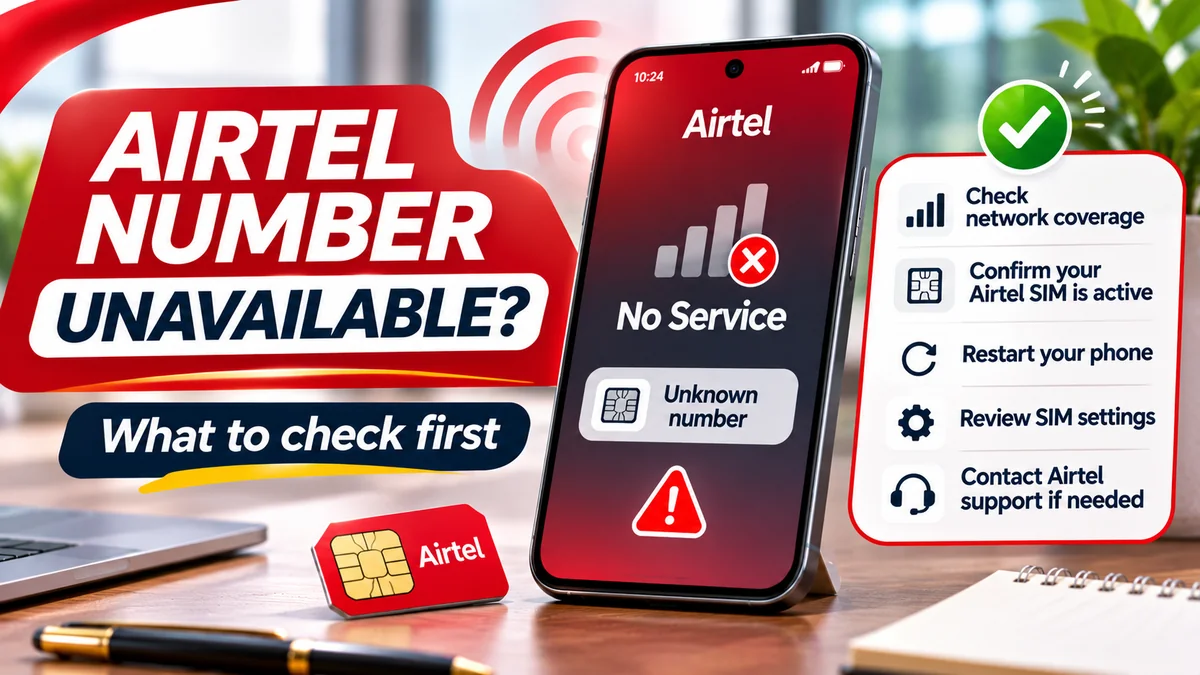
Troubleshooting: the SIM is enabled but shows No Service
If a line is enabled yet has no mobile service, the problem may be signal coverage, activation, a temporary network disruption, a carrier restriction, device compatibility or account status. Do not assume the physical SIM is defective until simpler checks are complete.
- Confirm that Airplane Mode is off and the intended line's Use SIM or Turn On This Line switch is enabled.
- Move to an area with known network coverage and give the handset time to reconnect.
- Restart the phone once if the carrier remains unavailable.
- Check whether the correct network is selected automatically; avoid forcing an unsupported operator.
- For a physical SIM, inspect the tray and card only if necessary and if you can safely remove them using the device maker's instructions.
- If only one line is affected, contact that mobile network for account or SIM-provisioning checks.
FlyingEze has reported on an MTN service disruption in Taraba . That is an example of how a network problem can affect connectivity without changing which SIM is enabled. It does not prove there is a current outage where you are.
Why does the enabled SIM show “Unknown” for its phone number?
The phone may not have a reliable stored number for that SIM. “Unknown” is not proof of a disabled line. Use a controlled call or an already authenticated carrier account to establish the number. The phone's IMEI and a SIM's ICCID are identifiers for hardware or SIM credentials—not substitute telephone numbers.
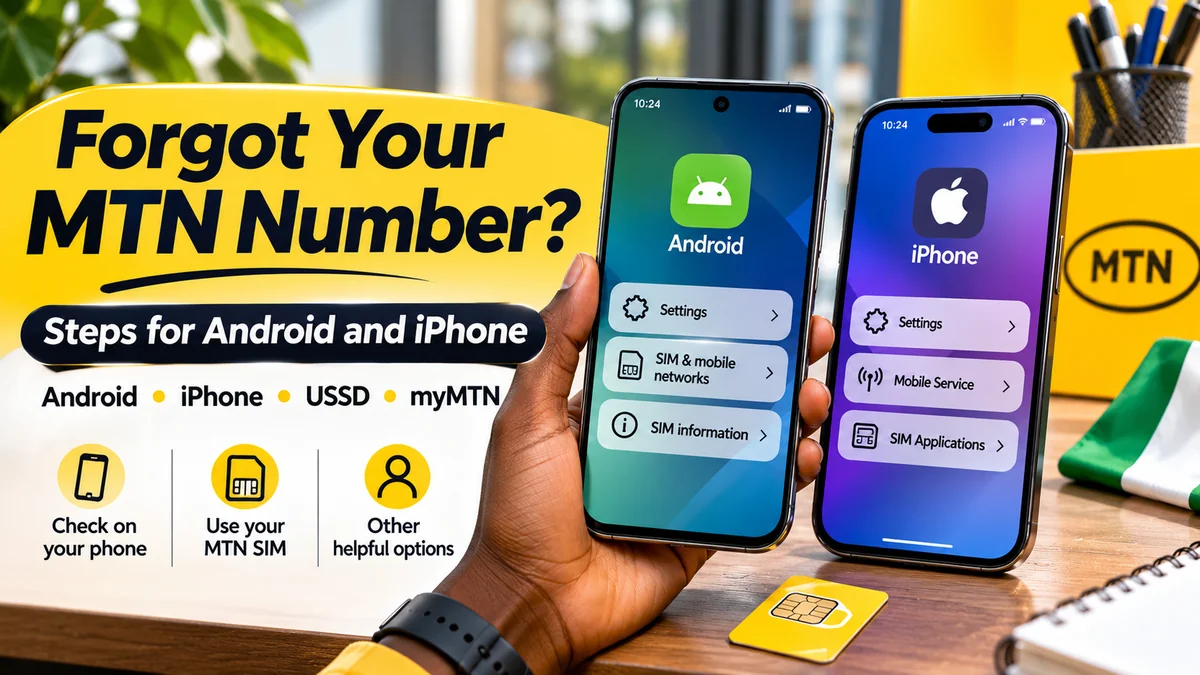
If you are specifically trying to retrieve your MTN number, use the relevant support process rather than confusing a SIM activation toggle with a number-retrieval service.
What about eSIMs and multiple stored cellular plans?
An eSIM is a digital cellular profile rather than a removable plastic card. A compatible iPhone or Android device may have several stored plans but fewer simultaneously enabled lines. Apple's Dual SIM explanation confirms physical-SIM-plus-eSIM and supported dual-eSIM combinations on eligible models; Google similarly lists device and carrier limitations for Pixel.
Check which plans are installed, which are turned on, and which are selected for your services. Do not delete an eSIM or factory-reset the phone simply to discover which plan is active. Reinstalling an eSIM can require new activation steps from the carrier.
Renaming your plans to something clear like MTN Personal and Airtel Work can prevent future confusion. Remember that names are user-editable, so if a plan was transferred or ported, verify the network rather than relying solely on a custom label.
Protect your number and avoid accidental charges
Incorrect SIM selection can create inconvenience beyond placing a call from the wrong line. It may use a different data allowance, send a message from a work number, or disrupt a verification process that expects an SMS on a specific registered SIM.
Before paying for mobile data, choosing a bundle or changing account details, make sure the selected operator and number are correct. Keep one-time passwords private and never share NIN details or SIM-replacement credentials with someone claiming to identify the “active” line remotely.
The official MTN Nigeria contact page lists 300 for customer support and its WhatsApp number. The NCC's harmonised shortcode guidance confirms 300 as the general network helpdesk code. A support call from the intended network may be helpful if a line cannot register or you cannot verify the account.
Frequently asked questions
How do I know if SIM 1 or SIM 2 is active?
Open your phone's SIM manager or Cellular settings and inspect the enabled switches for both lines. Then check the carrier connection and which line is selected for calls, messages and data. SIM 1 and SIM 2 are slot labels, not network identities.
Can both SIMs be active at the same time?
On supported dual-SIM devices, both lines can be enabled and registered, though simultaneous call behaviour varies by device and carrier. Most ordinary use involves one selected mobile-data line at a time.
Does the default mobile-data SIM receive all my calls?
No. Incoming calls generally depend on each line's network availability, while outgoing-call defaults are controlled separately. A data SIM selection does not automatically choose the voice line.
How can I check which SIM is MTN without knowing the number?
Look for the active network name in SIM settings and cross-check with an existing myMTN NG account or a test call placed through the chosen line. Avoid assuming a slot name or the beginning of an old number identifies the current operator.
Why does my phone use the wrong SIM when I call someone?
The call preference might be set to another line, or the handset may remember a contact-specific choice. On iPhone, Apple expressly documents this per-contact behaviour. Inspect the selected number before dialling.
Will turning off one SIM delete its number?
Normally, disabling a line in device settings only stops the phone using that line until re-enabled; it is different from deleting an eSIM profile or asking the carrier to deactivate an account. Avoid using the erase or delete-eSIM control as an ordinary troubleshooting step.
What if MTN is enabled but says No Service?
Check signal coverage, Airplane Mode, network registration and whether the SIM is provisioned. Restart once and contact MTN using official support channels if the issue persists.
Conclusion: identify the enabled line and the selected service separately
To confirm which SIM is active in a dual-SIM phone, begin with the SIM enable switches, then check the registered carrier and the separate choices for outgoing calls, SMS and mobile data. On Samsung, that usually means SIM manager; on Pixel, Network & internet → SIMs; on iPhone, Cellular or Mobile Service.
For MTN users, the critical final step is to verify the actual line—not merely the SIM slot or a saved label—before sharing the number or using it for an important account. A dual-SIM phone becomes much easier to manage once you know that enabled, connected and default describe different states.