
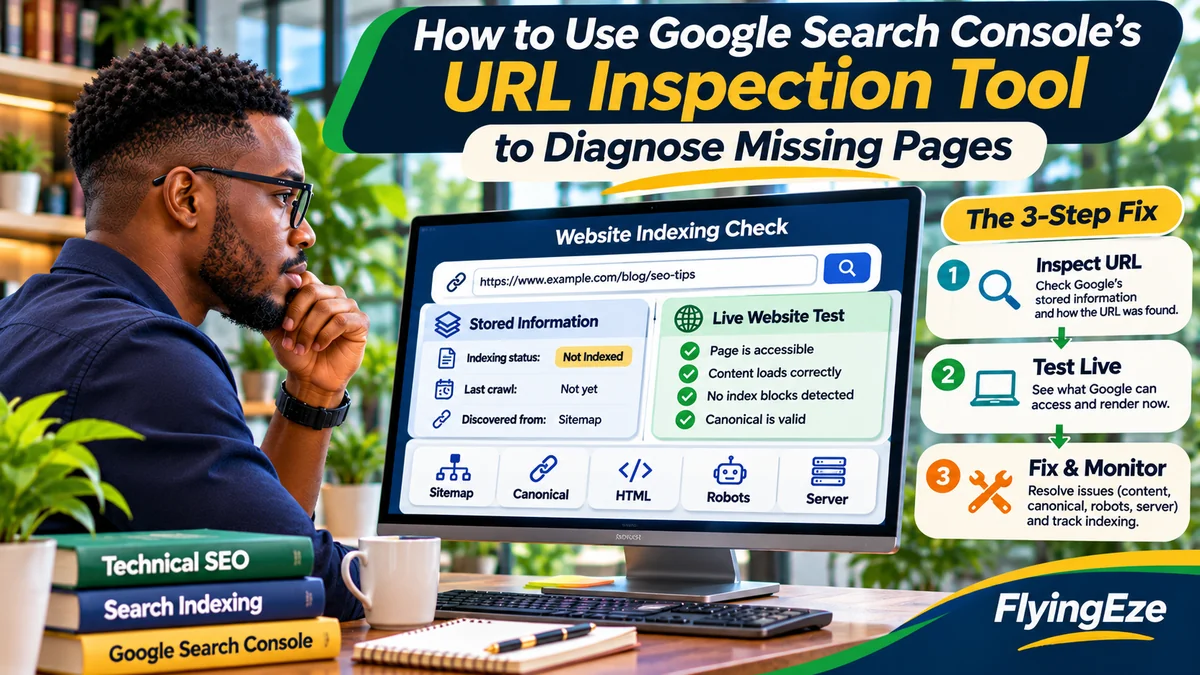
To use Google Search Console's URL Inspection tool to diagnose a missing page, inspect the exact URL, read Google's stored indexing result, examine the crawl and canonical details, and run a live test to see what Google's inspection crawler can access now. Then use the evidence to fix the appropriate issue: discovery, robots.txt access, noindex, server response, JavaScript rendering, duplication or conflicting canonical signals.
Google's official URL Inspection documentation distinguishes the stored information Google already has about a URL from the live test of the current page. A passing live test does not guarantee that Google will index the page, choose it as canonical, show it for searches or rank it prominently.
For Nigerian news publishers and small businesses, this distinction prevents wasted work. Repeatedly requesting indexing cannot repair an empty article template, and rewriting an excellent article will not remove an accidental noindex header. This guide gives a practical diagnostic process and explains what to do with each result. Research verified 3 November 2026; examples are fictional, not a live FlyingEze Search Console audit.
What is URL Inspection, and when should you use it?
URL Inspection is Search Console's diagnostic tool for one URL in a property you manage. It reports whether Google has indexed the URL and, where available, information about discovery, the last crawl, crawling and indexing permission, page fetching and Google's selected canonical. It also offers a current live test, rendered-page details and a way to request indexing.
Use it when a new article is missing, a recently updated page shows old information, a redirect appears wrong, or Google selects an unexpected canonical. Google's single-page troubleshooting guide explains that these fields help distinguish crawl problems from index-selection problems. The tool does not test every quality or security condition, nor does it guarantee traffic.
Step 1: Select the correct property and inspect the exact URL
Sign into Google Search Console and select the relevant domain or URL-prefix property. Paste the full URL into the inspection field across the top of the interface. The URL must belong to the selected property.
Check the hostname, protocol, trailing path and any accidental parameters. For example, https://www.example.com/guides/indexing and https://example.com/guides/indexing are distinct addresses even if your site redirects one to the other. Inspect the page you genuinely intend users to find, then investigate redirects or alternate versions separately.
Alternatively, go to Indexing → Pages, open an exclusion category and inspect a relevant example URL. Record the article's publication date, intended canonical, index status and inspection date so you can compare later results.
Step 2: Read the initial Google Index result
URL Inspection initially displays Google's stored indexing information, not a fresh fetch. The broad outcome might say the URL is on Google, not on Google or unavailable because of an indexing problem. A page described as on Google is eligible to appear, but its appearance for any particular search is not guaranteed.
If the URL is not indexed, expand the detail rather than pressing Request indexing immediately. Google's Page indexing report identifies reasons that include discovered but not crawled, crawled but not indexed, redirects, duplicates, blocked pages and server errors. Some exclusions are intentional: a duplicate URL or deleted page does not necessarily deserve indexing.
A common error is chasing a 100% indexation rate across every filter, tracking parameter and archive URL. Prioritise genuinely valuable canonical pages.
Step 3: Examine discovery, crawl and indexing details
Expand Page indexing and review the information available. A field may be absent if Google has not crawled the URL or lacks the relevant information; blank values should not automatically be treated as faults.
| Inspection field | What it tells you |
|---|---|
| Sitemaps / referring page | Potential discovery sources; Google's reporting can be incomplete |
| Last crawl | Date of Google's recorded fetch, which may predate your latest changes |
| Crawled as | Type of crawler associated with the recorded request |
| Crawl allowed? | Whether robots.txt allowed crawling |
| Page fetch | Whether Google retrieved the page successfully |
| Indexing allowed? | Whether an index-blocking directive was detected |
| User-declared canonical | The site's preferred representative URL |
| Google-selected canonical | Google's representative URL where that information is available |
Suppose you fixed a noindex tag today but the last recorded crawl occurred five days ago. The stored report may still show the old restriction. That is a reason to compare live results, not to conclude the fix failed. Google's documentation also notes that sitemap references are not always completely reported.
Step 4: Run Test live URL
Click Test live URL to fetch the current page with Google's inspection crawler. Compare the live result with the stored one. If the old report says Indexing allowed? No but the live test now finds no blocking directive, a technical improvement may be confirmed—even though indexing has not yet occurred.
The live test cannot determine whether a page will be selected as Google's canonical. It also does not check sitemap submission, all duplicate-page issues, manual actions, content removals or every quality requirement. Google may follow a redirect during testing without showing the final destination in the headline result; inspect redirect behaviour independently when necessary.
Remember that transient server failures can produce different outcomes across separate tests. A single live pass does not prove the origin or CDN has been consistently available to Googlebot.
Step 5: View the rendered page and response information
Where the live test succeeds, open View tested page to inspect the rendered screenshot, HTML, HTTP details, resource loading and JavaScript console output. Google says a rendered screenshot is provided for successful live tests, not as a screenshot of its stored indexed version.
Does the tool see the article headline, body text, main links and meaningful content? If a React or JavaScript page returns only a loading spinner, empty container or consent overlay, Google may not receive the same useful content readers see after scripts execute. Its JavaScript troubleshooting guidance recommends checking rendered HTML, console errors and resource access.
Where needed, fix failed data requests or make important article content available through reliable rendered HTML. Avoid assuming that HTTP 200 alone means Google has seen the intended page.
Step 6: Fix robots.txt and noindex problems correctly
If Crawl allowed? No, inspect the applicable robots.txt for unintended restrictions affecting the URL or required resources. Check which host the rule applies to. A robots.txt disallow controls crawling, not a guaranteed removal of known URLs from search results. Google's robots documentation explains the distinction.
If Indexing allowed? No, inspect page HTML and response headers for a <meta name="robots" content="noindex"> tag or X-Robots-Tag: noindex header. The application, server configuration or CDN can set a header even when the page template does not contain a noindex tag. Remove only directives that conflict with your intended publication state.
Do not block a page with robots.txt to force Google to process a noindex directive. A blocked crawler cannot read the page's noindex instruction. Google's index-blocking guidance describes the correct approach.
Step 7: Investigate HTTP errors, redirects and soft 404s
Check whether the URL really serves the intended content. A deleted article can appropriately return 404 or 410. A moved article may correctly redirect to an equivalent replacement. An article intended to be live should not intermittently respond with 403, 500 or a login challenge.
A soft 404 may occur when the server returns 200 even though the content effectively says the page is missing or provides almost nothing useful. Google's crawl troubleshooting documentation notes that missing resources or failed JavaScript can also cause apparently blank pages. Restore genuine content when it exists; otherwise use the correct response or meaningful redirect.
For sites protected by Cloudflare or another CDN, correlate Search Console with origin and security logs. A browser test from your office may not match a verified Googlebot request. FlyingEze has discussed the difference between AI-training crawler controls and search crawling ; never remove all bot protection merely to chase an indexing warning.
Step 8: Interpret Google-selected canonical versus user-declared canonical
If inspection shows that Google chose a different canonical URL, compare canonical tags, redirects, internal links and sitemap entries. Google's canonicalisation guide explains that the declared canonical is a signal, not an order. Google may prefer a different page when it believes that URL better represents equivalent content.
For example, an article may declare /blog/guide canonical while the sitemap and internal links consistently point to /guide. Align the signals around the correct reader-facing version. If two pages are near-duplicates, having only the canonical indexed can be normal. If both serve distinct user needs, differentiate the main content rather than trying to force duplicate URLs into the index.
The live test cannot predict Google's selected canonical. Check the stored indexing information for that decision when available.
Step 9: Check sitemap discovery and internal links
If Google says the URL is unknown or discovered but not yet crawled, confirm it is reachable through relevant internal links and appears in an appropriate XML sitemap if you intend it to be indexed. Use real HTML anchor links, not just a JavaScript-only search interface. For new articles, record meaningful modification dates rather than inventing fresh timestamps every day.
Google's sitemap documentation says sitemaps help discovery but do not guarantee crawling or indexing. A missing referring-page or sitemap field in URL Inspection is not decisive proof of an internal-link problem. Compare with the site's actual navigation and sitemap content.
Where many important URLs remain uncrawled, also review Crawl Stats, server errors and URL duplication. For a single recently published page, allow for ordinary indexing delays.
Step 10: Investigate content value when the technical checks pass
Suppose a page returns a valid response, allows crawling and indexing, renders meaningful content and has a consistent canonical—but remains Crawled – currently not indexed. The live tool cannot explain every selection decision. Compare the page with your own related posts and evaluate whether it answers a distinct question with useful information.
Google's people-first content guidance emphasises original evidence, clear explanations and reliable sourcing. If a new post simply repeats an older guide with keyword changes, consolidation may be better than another indexing request. If a page is genuinely distinct, improve specific gaps such as incomplete instructions, outdated references or unhelpful examples.
As FlyingEze's published analysis AI Search Has Not Made SEO Fundamentals Obsolete notes, accessibility, site structure and useful content reinforce each other. No fixed word count, keyword density or repeated submission can guarantee Google's approval.
Quick diagnosis table for missing pages
| Result | Likely next investigation |
|---|---|
| URL unknown to Google | Confirm publication, sitemap and crawlable internal links |
| Discovered – currently not indexed | Review crawl scheduling, host accessibility and URL inventory |
| Crawled – currently not indexed | Review rendered page, uniqueness, content value and canonicals |
| Blocked by robots.txt | Check path-specific rules and intended accessibility |
| Noindex present | Inspect HTML meta directives and HTTP headers |
| Soft 404 or fetch failure | Check real content, status codes, origin and JavaScript failures |
| Different Google-selected canonical | Evaluate duplicates and align canonical signals |
| Live pass but still unindexed | Allow processing time; review quality, duplicates and stored report |
Worked example: an article missing from Google
A fictional Nigerian technology publisher posts a detailed guide on payment reconciliation. A week later, URL Inspection reports Crawled – currently not indexed, and its most recent crawl is three days old. The live test passes. The page has an appropriate canonical, no noindex instruction and a rendered article body.
Further review shows another existing guide on the same website answers almost exactly the same questions. This does not prove why Google excluded the new URL, but it identifies a plausible editorial issue: combine overlapping coverage or add genuinely new research and a more specific purpose.
In a second scenario, Google's stored report instead shows a failed page fetch while today's live test passes. That suggests checking recent origin outages, CDN challenges and logs, rather than rewriting the article. Both examples demonstrate the value of comparing what Google saw previously with what it can access now.
When should you use Request indexing?
After making an important fix, inspect the page and click Request indexing if available. Google runs a basic check and can place the URL in a crawl queue. The tool has quotas, and the official recrawl guidance says repeated requests for the same URL do not speed up crawling.
Indexing may take days or weeks, and inclusion is not guaranteed. For many new or substantially updated articles, an accurate sitemap is usually more practical than requesting each URL manually. Do not promise clients guaranteed indexing within 24 or 48 hours.
A weekly inspection routine for publishers
- Choose several important missing or outdated URLs, prioritising canonical content over filter and parameter variants.
- Log the stored indexing result, crawl date, fetch result and available canonical details.
- Run live tests on representative URLs and inspect HTML or rendered screenshots where useful.
- Group cases by cause: discovery, access, directive, server, rendering, duplication or delayed processing.
- Assign and verify concrete fixes before selectively requesting indexing.
- Monitor later crawls and index changes, allowing for reporting delays.
Use the Page indexing report for broader patterns and Crawl Stats or verified server logs for sitewide availability problems. The list of sample URLs in Search Console is not necessarily a complete list of every affected URL.
Frequently asked questions
Why can I open a page but Google says it is not indexed?
Being accessible to visitors does not mean Google has discovered, crawled or selected the page for its index. Inspect the stored status and live result to diagnose the difference.
Does “URL is available to Google” guarantee indexing?
No. The live test checks certain technical requirements, not every content, quality or canonical-selection factor.
Can URL Inspection tell me Google's selected canonical from a live test?
No. Canonical selection appears in Google's stored indexing information where available.
Does View tested page show the old indexed screenshot?
No. Google's screenshot is available for successful live tests. Stored crawl details can provide other technical data, but not an indexed-version screenshot.
Should I request indexing every day?
No. Repeated requests do not accelerate crawling and are subject to quotas. Prioritise actual fixes and monitor.
Does a page need to be indexed to appear in a Search Console report?
No. The Page indexing report includes known but excluded URLs as well. An unknown URL may not appear until Google discovers it.
Conclusion
URL Inspection helps turn a missing page into a specific, testable diagnosis. Compare Google's previous crawl information with the current live result; check indexability, response codes, rendering, canonical selection and discovery; then make the fix supported by the evidence. It is a diagnostic and monitoring tool—not a shortcut that forces Google to index every URL.