BREAKING a simple rule could be to blame for your iPhone running slow, freezing and even shutting off.
There are loads of reasons why an iPhone’s performance might not be up to scratch – but there’s an easy mistake you’ll definitely want to avoid.
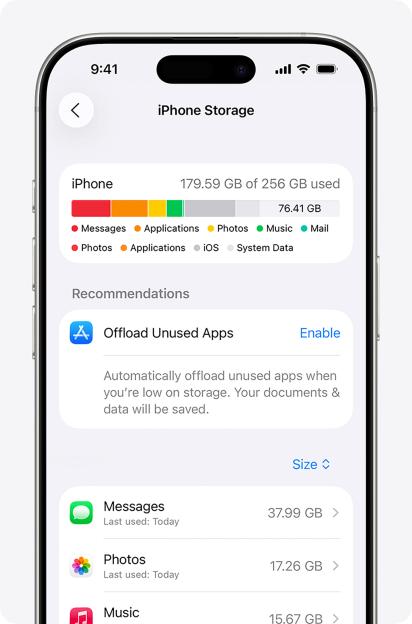 Your iPhone’s poor performance might be due to low storageCredit: Apple
Your iPhone uses a computer chip called a processor to get things done.
And when your iPhone is working hard, that processor is under strain – and can cause the device to slow down.
But what many people don’t realise is that can also play a part in putting strain on your iPhone’s processor.
That’s because at very low storage levels, your iPhone is constantly having to manage the storage.
And has warned that if you’ve got less than 1GB of storage, this problem can become especially severe.
Your iPhone might slow right down, and even switch off randomly, if storage gets too low.
“ and iPadOS manage storage automatically during tasks such as app installs and updates,” Apple explained.
“By removing items that can be downloaded again or that aren’t needed any more.
“To avoid slow-downs, maintain at least 1 GB of free space.”
And Apple previously noted: “For best performance, try to maintain at least 1GB of free space.
“If your available storage is consistently less than 1GB, your device might slow down as iOS or iPadOS repeatedly makes room for more content.”
STORAGE CHECK
The good news is that you can check your storage at any time.
Just go into Settings > General > iPhone Storage to see how much space you’ve got left, as well as what’s using it all up.
If your iPhone storage is frighteningly low, you do have a few options.
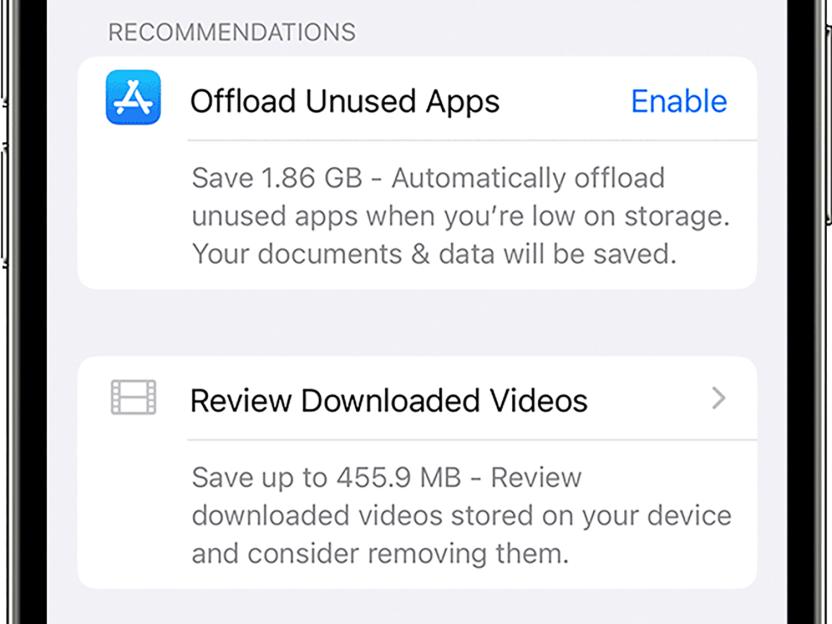 There are some quick ways to free up storage spaceCredit: Apple
At the top of this page, you should see some options that Apple recommends for clearing up your storage.
One great option is a feature called Offload Unused Apps.
This frees up the space on your phone by deleting the app itself. But it retains your documents and data, so you can reinstall it and pick up where you left off if you ever need to.
As well as that, you should see a long list of apps ordered by the amount of space they’re taking up on your iPhone.
 Make sure you don’t let your iPhone’s free storage space dip below 1GBCredit: Apple
If you’ve got any huge items on there that you rarely use, consider deleting them.
For instance, some mobile games can take up a significant amount of space – and if you’ve stopped playing them, it’s time to hit delete.
You can also delete duplicate images that you’ve got saved, or any big video files that you’re never going to watch.
If you have iCloud storage, you can offload your photos to the cloud and keep lower-res “optimised” versions on your device.
Sign up for The Sun Tech newsletter for gadgets, games & more
Hello! I'm Sean Keach, The Sun's Head of Technology and Science
I’ve been writing about gadgets, games and the future of technology for more than a decade.
During that time I’ve penned thousands of articles, filmed hundreds of videos, talked tech on TV and radio, and travelled around the world to bring you the latest on Apple, Meta, Google, Amazon, Netflix and more.
And I’ve got a weekly newsletter called The Sun Tech that you can read for free every Thursday.
I bring you the latest from the world of tech, including behind-the-scenes action, exclusive content, expert analysis, and plenty of help advice – so please follow along!
By making a few of these changes, you can very quickly free up vast amounts of iPhone storage.
WHY SO SLOW?
But storage isn’t the only reason for a slow iPhone.
Your iPhone can perform worse in the days immediately following a software update.
Sometimes your “slow” experience might not even be due to iPhone performance. It could be down to a poor internet connection.
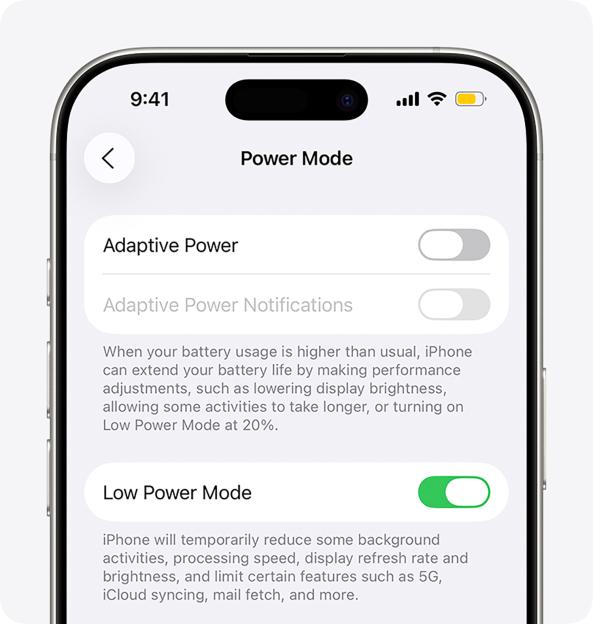 Look for Low Power Mode by checking for a yellow battery icon – it gives you extra juice at the expense of phone performanceCredit: Apple
Other times, the app itself is the problem. Some apps – especially ones not updated in a long time – can be buggy. Try checking for updates on the App Store before giving up on them.
As well as that, by swiping it closed in your app tray can also fix some bugs.
If your battery life is very low and has kicked in, that can throttle performance. You’ll know if Low Power Mode is on because your battery icon will be yellow.
And if you have a very old iPhone that has (you can check its health in Settings > Battery > Battery Health), that can affect performance too.
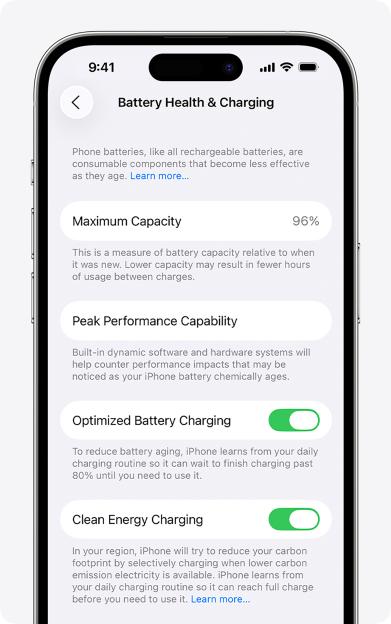 Your battery health can also affect iPhone performanceCredit: Apple
As well as that, letting your iPhone get very hot can severely limit performance. Try not to use it in direct sunlight for long periods of time, especially if you’re doing something processor-intensive like playing a game or recording video.