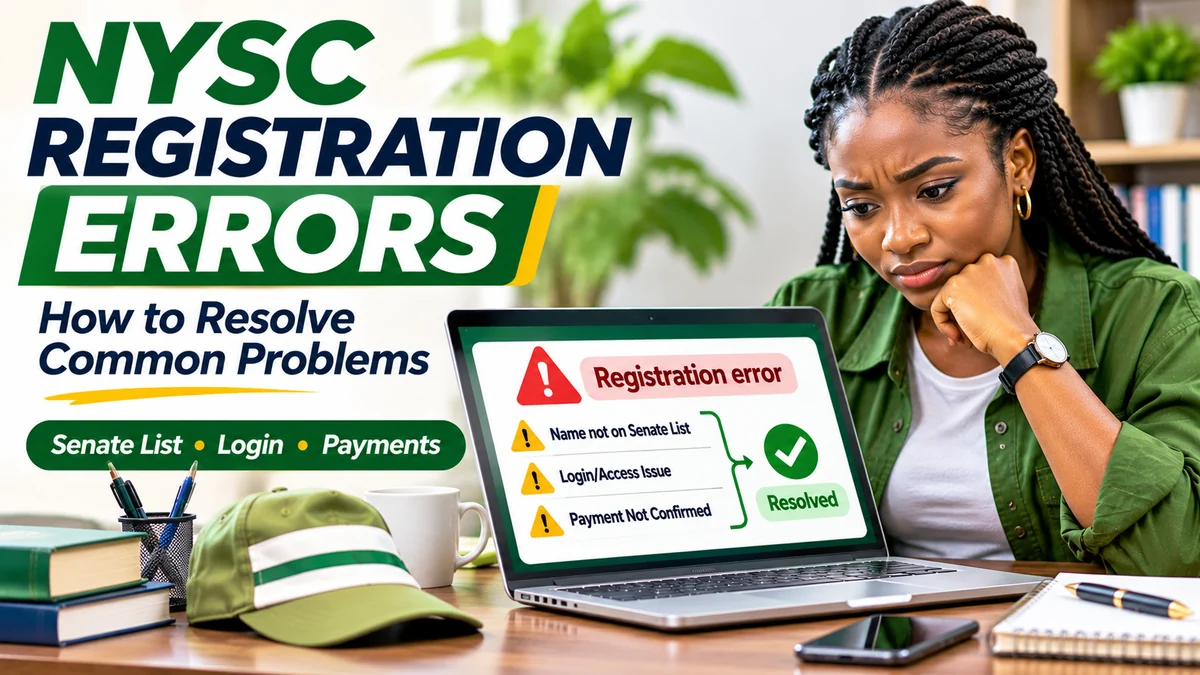
Most NYSC registration errors can be resolved by identifying whether the problem comes from your institution's records, your NYSC account, biometric capture, document uploads or payment processing. Do not create a new account, pay a stranger or change personal information simply because the NYSC registration portal shows an error. Start at the official portal.nysc.org.ng , preserve any transaction or error reference and follow the appropriate correction process.
A prospective corps member whose name is missing from the Senate list needs a different remedy from someone whose password is not working. A bank debit that has not appeared in NYSC's dashboard also does not necessarily mean a failed payment. This guide explains the common scenarios, practical checks and official escalation channels, drawing primarily on NYSC's own registration FAQ , pre-registration requirements and support information .
Research verified 12 November 2026. Portal wording, registration windows and correction services can change. Follow the live instructions for your specific service year, batch and applicant category.
NYSC registration errors: quick diagnosis table
| Problem | Likely next step | Who can help? |
|---|---|---|
| Name missing from Senate list | Check school and graduation details; ask your institution to verify its uploaded approved list | Institution's Student Affairs/mobilisation office |
| Matriculation or JAMB number already exists | Stop creating accounts and ask your institution to investigate the conflicting record | Institution first; NYSC if directed |
| Activation email not received | Check the correct mailbox and spam folder, then the official account or support process | NYSC registration technical support |
| Cannot log in or forgot password | Use the portal's official “Forgot Password or E-mail?” route | NYSC portal support |
| Fingerprint scanner not detected | Check approved scanner, driver and current NYSC desktop app | NYSC technical support |
| Passport photo rejected | Fix background, framing or file preparation using the portal's requirements | Applicant or legitimate registration centre |
| Incorrect name, course or birth date | Use the appropriate NYSC correction request rather than editing records informally | NYSC and, for some changes, institution's Student Affairs Officer |
| Money deducted but payment pending | Query the NYSC Remita payment-status service with the transaction details | NYSC/Sidmach technical support if unresolved |
| Portal fails to load or session expires | Verify official hostname, connection and current registration window; retry carefully | NYSC technical support if persistent |
The table gives a safe starting point rather than a guarantee of an instant fix. An error message may arise for more than one reason, and the correct remedy depends on your verified record.
Before troubleshooting, check the correct NYSC website and batch
The recognised registration address is https://portal.nysc.org.ng/ . The main institutional site is nysc.gov.ng . NYSC identifies these official channels in its registration guidance. If a page asks you to log in through an unfamiliar hostname or make a transfer to an individual's bank account, stop and navigate afresh from the official site.
Check the registration category: fresh registration, revalidation, remobilisation and part-time exclusion-related registration are not identical. A valid application from an earlier batch may call for revalidation rather than a second fresh registration. The current portal has historically shown different deadline text on different service paths, so confirm the active batch using an official timetable and the service available on your own dashboard rather than relying on a social-media screenshot.
Before you ask for help, note the exact error text, the page or step where it occurred and the date. Keep private screenshots that hide passwords, identity numbers and payment-card information. A clear description makes support faster than simply saying “the portal is not working”.
1. “Name not found on Senate list”
For Nigerian-trained graduates, NYSC requires the candidate's details to appear on the Senate or Academic Board-approved results list uploaded by the institution. If the record is missing, changing browser settings will not add it. NYSC's official FAQ specifically tells candidates with a missing Senate-list entry to contact their institution.
- Use the Senate-list check linked from the official portal and verify the institution and details you entered.
- Compare the spelling of your name, matriculation number, programme and graduation information against your school's records.
- Contact the Student Affairs or NYSC mobilisation office at your institution and ask whether your approved record was uploaded and accepted.
- If the institution confirms a correction is needed, follow its recognised upload and approval process.
- Recheck the portal after the institution advises that its submission has been processed.
A statement of result or screenshot sent to a private agent does not replace a valid institutional upload. If your institution has not yet submitted the required results for your batch, you may have to wait for the appropriate timetable rather than search for an unofficial workaround. NYSC's mobilisation department guidance confirms the institution's responsibility for approved lists and corrected submissions.
2. “Matriculation/JAMB number already exists”
This message suggests an identity or institutional data conflict that must be investigated, not a reason to invent a different number. NYSC's FAQ places matriculation or JAMB number already exists alongside missing Senate-list records under the issues applicants should take to their institution.
Check whether you have already registered under another email, whether your original matriculation number was entered correctly and whether the institution's submission contains the proper JAMB number where applicable. Bring the information to your school's Student Affairs or mobilisation office. Never attempt to “solve” a duplicate record by borrowing someone else's details or opening multiple registrations.
If the matter remains unresolved after institutional checks, ask the school or NYSC support for the formal escalation route. An apparent duplicate does not prove fraud; it may arise from previous registration history or conflicting records.
3. No NYSC activation email or inability to activate an account
NYSC's standard registration sequence includes creating an account with a functioning email address and activating it through the link sent to that inbox. If the message does not arrive, first check whether the email entered during account creation was correct. Search Inbox, Spam, Junk and Promotions folders and wait for a reasonable delivery period.
If you requested multiple messages, avoid guessing which old activation link is valid. Return to the official login or registration screen and follow any available resend or account-recovery guidance. Where the correct email was misspelt or is no longer accessible, the appropriate step is to contact NYSC technical support rather than register repeatedly using different addresses.
Do not forward an activation link or one-time code to a person claiming to be an NYSC agent. Even when someone helps with a registration device, the applicant should remain in control of the email and password.
4. Incorrect password, login rejected or forgotten email
The official NYSC login interface includes a “Forgot Password or E-mail?” route. Start there if you cannot access an existing account. Check for accidental spaces in the address, keyboard case differences and any security-check image or CAPTCHA on the screen. Use the correct email associated with the original record.
Never try random passwords indefinitely or ask a third party to recover the account with an unofficial link. If self-service recovery fails, use the portal contact page . Give support the email associated with the account and a description of the issue through official channels, but do not disclose your password or verification codes.
If you previously registered and now see a closed registration button, that does not automatically mean your login details are wrong. The service you need may be outside its registration window, while account-login and other functions remain available.
5. NYSC fingerprint scanner not detected or capture fails
Biometric errors deserve special care because incorrect capture can affect later verification. The NYSC current pre-registration page specifies a Digital Persona U.are.U 4500 scanner, a Windows computer and the official NYSC registration desktop application. It says older browser-based Java fingerprint capture is no longer supported as the current workflow.
Scanner not recognised
- Confirm that the scanner is the model specified on the official NYSC requirements page.
- Check that the appropriate driver and NYSC desktop application were installed from the official portal resources.
- Reconnect the scanner as directed and restart the computer after driver installation where necessary.
- If the app says “Get the updated version”, NYSC instructs users to uninstall the app completely and reinstall it from its official biometric client page .
- If the device still fails, contact the portal's technical support rather than installing unverified “scanner repair” programs.
Scanner is detected but fingerprints will not capture
NYSC's technical FAQ suggests cleaning the scanner surface and checking that a usable fingerprint is being presented. Allow the applicant—not an agent—to place their own fingers correctly. Avoid repeated forceful attempts that could injure the skin or damage the sensor; ask the authorised technician or official support team for help if capture keeps failing.
Do not use another person's fingerprints. NYSC expressly warns against biometric registration by proxy. It is also a mistake to rely on old instructions that tell you to enable insecure browser plugins when the current portal directs applicants to its desktop application.
6. Passport photograph rejected or not uploading
A rejected passport photograph may be a quality or file-preparation problem rather than a failure of your application record. NYSC's current photo preparation instructions call for a 2 × 2-inch image with a white or off-white background, the full face visible, straight posture and even lighting. Its image-preparation tool targets a JPG or PNG under 15 KB; check the live upload form for the exact limits it enforces.
Retake or crop the photograph if the face is too small, the background is busy, the image is blurry or parts of the face are obscured by a cap or glasses. Use the official photo-preparation tool or a trusted image editor, and make sure compression has not distorted your appearance. Keep the original file in case a later check asks you to prepare a new version.
If the upload freezes, check that it is the requested file type and size, then try again over a stable connection. Wait for the portal's upload confirmation before moving to the next section; seeing a selected filename on your device does not necessarily mean the server saved it.
7. Wrong name, date of birth, course or qualification
These corrections have distinct official routes. Do not assume that every submitted identity field can be changed freely or that paying for a “data correction” service guarantees NYSC approval. NYSC's FAQ distinguishes name spelling or rearrangement, date of birth, course, class of degree and qualification.
Name spelling or rearrangement
Log into your dashboard, select the name-correction request service where it appears, fill the requested fields and submit for approval. The NYSC FAQ states that it does not approve simply adding or removing names through the stated spelling/rearrangement procedure.
Course, class of degree and qualification
Use the relevant dashboard correction option, select the correct field and send the request. According to NYSC, the institution's Student Affairs Officer (SAO) is responsible for approving certain course, class-of-degree and qualification corrections. A submitted request is not proof that the change was approved.
Date of birth
NYSC's published process uses WAEC verification details, including a verification PIN, examination type, year and examination number. Follow the current dashboard instructions and obtain any required PIN only through a legitimate route. The official FAQ also describes special procedures where an erroneous date of birth has already led to an exemption certificate; those cases require institutional involvement and may not be resolved through an ordinary self-service correction.
Because identity and exemption changes can have serious consequences, keep copies of genuine supporting records and contact NYSC if the dashboard procedure does not fit your case. Do not falsify a date to qualify for service.
8. Remita payment deducted but NYSC still says “pending” or “unsuccessful”
A debit alert is not the same thing as successful confirmation in the NYSC application. The official payment guide directs applicants to use the Remita payment process launched from their authenticated dashboard, with a transaction reference or Remita Retrieval Reference (RRR).
If you have paid but the portal does not reflect it, use the official NYSC payment-status page :
- Enter the transaction ID or the email used for payment.
- Find the payment record and choose Get status to query the latest Remita information.
- Recheck your NYSC dashboard to see whether the payment status updated.
- If it remains pending after 24 hours, follow the official support instruction and provide the transaction ID or RRR.
NYSC's payment-status page says bank confirmation can take up to 24 hours. That is a troubleshooting guideline, not a guarantee that every transaction will resolve by the deadline. Avoid paying the same charge again unless the official transaction status or support confirms that a new payment is required. Do not share full card details or PINs in a support message.
9. Portal not opening, session timed out or “service unavailable”
A genuine government website may be temporarily slow or unavailable. High traffic, a lost internet connection, an expired session or an inactive service window can produce similar symptoms. Start by checking that you typed portal.nysc.org.ng correctly and that other websites load over your connection.
Try a supported up-to-date browser, refresh the relevant page once, and return through the main portal rather than an old deep link. If a form submitted just before a timeout, log in and check whether the record was saved before submitting it again. Repeated submissions can create uncertainty about which version reached the server.
Do not use a VPN, unknown browser extension or unofficial mirror site as a supposed guaranteed fix. If the problem continues across a stable connection, record the time, affected page and exact error, then contact technical support.
NYSC's own portal displayed differing dates for some Batch C 2026 service paths during this article's verification. For that reason, do not treat an old cached notice or the presence of a generic “active” badge as definitive evidence that your registration category is still open. Confirm the relevant batch through the live service and official announcements.
10. Foreign-trained graduate documents not accepted
Foreign-trained Nigerian graduates follow additional checks that locally trained candidates should not automatically copy. NYSC's foreign-trained mobilisation guidance identifies original degree or HND evidence, full transcripts, O'Level certificates and relevant travel documents, with further requirements for certain qualifications or personal circumstances.
If a document is rejected, inspect the applicable requirements and ensure the uploaded image is legible, complete and corresponds to the genuine record. Avoid substituting an unsupported attestation for a required original certificate or editing a credential to match an online form. Some applicants also need physical verification of originals after online submission.
When a genuine document does not match NYSC's records, use the authorised support or verification process rather than uploading another person's record. A successful upload is not the same as final verification or deployment approval.
11. Registered but cannot find a call-up number or letter
Online registration is one stage of mobilisation, not automatic proof of immediate posting. Call-up details depend on eligibility checks, the mobilisation timetable and the applicant's category. Before assuming an error, check whether the relevant batch has reached the stage for issuing call-up information.
Log into the account used for registration, verify that your submission and any applicable payment are recorded, and review current official NYSC notices. A previous batch's letter-release date should not be applied to a new batch. FlyingEze's coverage of the 2026 Batch B Stream II call-up-letter release is an example of a time-specific announcement, not a standing promise that all registrants will see letters immediately.
If the batch deadline for document release has passed and your dashboard remains inconsistent, raise a case with NYSC support, providing the information it requests through official channels.
When should you contact your school, NYSC or its portal support partner?
| Start with | Examples | Official resource |
|---|---|---|
| Your institution's Student Affairs/mobilisation office | Missing Senate-list name, duplicate matriculation/JAMB number, institutional course or qualification corrections | Institution's recognised administrative office |
| NYSC registration support | Unresolved account, registration status, correction and mobilisation questions | NYSC support helplines |
| NYSC technical support partner | Portal problems, unresolved Remita payment or biometric capture | NYSC contact directory |
| Official payment-status service | Payment deducted but pending or not reflected | Check payment status |
The official NYSC contact page lists nyscsupport@nysc.org.ng for headquarters questions and identifies Sidmach Technologies as its portal technical support partner. Its current listed support phones include 0814 786 9429, 0903 803 4460 and technical-support numbers 0908 719 7603 and 0908 719 7604. Verify the contact details on the official page before calling, as support numbers can change.
Prepare your registration email, call-up number if issued, exact error text, the affected page and transaction ID/RRR if a payment is involved. Do not publish that information in a public comment or social-media reply; share it privately only through a channel you have verified belongs to NYSC.
How to avoid NYSC registration scams while fixing an error
When deadlines are approaching, fraudsters can exploit anxiety with promises to “unlock the portal”, add names to the Senate list, guarantee a posting or reverse any payment. These are not safe substitutes for NYSC's formal procedures.
- Type official URLs directly; inspect the full hostname before logging in.
- Never send an OTP, password, card PIN or biometric data to an unknown contact.
- Do not pay personal accounts for an invented correction or “special window”.
- Keep evidence of a problem but redact sensitive details before seeking general advice.
- Confirm notices against NYSC's website, not simply a logo on a forwarded graphic.
For context, FlyingEze previously reported that NYSC disowned a viral special-redeployment notice . The same verification habit is relevant when a message claims to offer an urgent solution to an online registration error.
Frequently asked questions about NYSC registration errors
Can I fix a missing Senate-list entry myself?
Not by changing a browser or creating a second profile. NYSC says locally trained graduates should contact their institution when their name is missing from the approved list.
What if my matriculation or JAMB number already exists?
Check your prior registration history and correct institutional details, then contact your institution's Student Affairs or mobilisation office. Do not substitute a different person's number.
Can someone else capture my fingerprints for me?
No. NYSC says biometric capture must not be done by proxy. Use your own fingerprints through the required supported setup.
Will a deducted payment automatically update my NYSC account?
Not always. Query the official NYSC Remita status tool. The portal advises contacting support if a pending payment has not been confirmed after about 24 hours.
Can I correct my name or date of birth after registration?
NYSC provides formal correction services with different rules and approvals. Certain name alterations are restricted, and age-related corrections may require verified WAEC details or involvement of your institution.
Should I register again if the portal crashes?
First sign back in and inspect the saved account and submission status. A second registration may create confusion or conflict with the original record.
Conclusion: identify the error before attempting a fix
The safest way to deal with NYSC registration portal errors is to match the problem to the institution or official service that can resolve it. Missing approved records and duplicate student numbers belong with the institution; account and biometric failures belong with NYSC's technical channels; name and course changes follow formal correction procedures; and pending payments should be checked through NYSC's Remita status service before another payment is made.
Use verified addresses, keep your account secure and document what went wrong. A careful, traceable correction is far more valuable than a quick unofficial workaround that could endanger your registration.