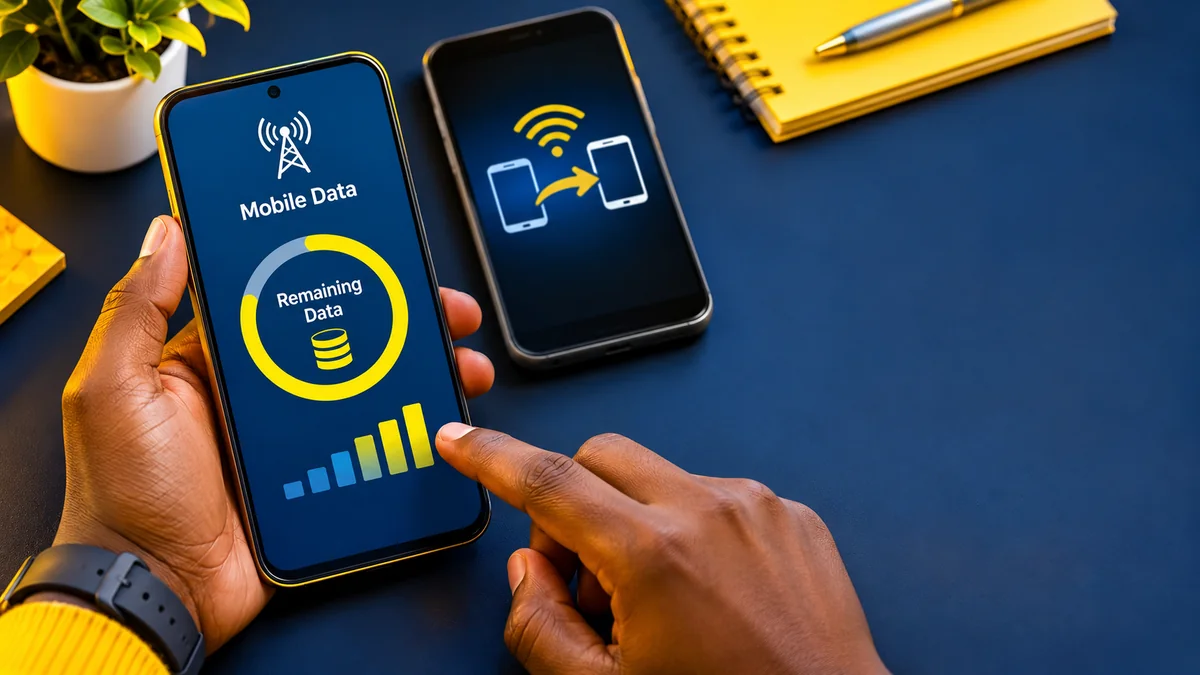
Quick answer: After sharing an MTN data bundle in Nigeria, dial *323*4# on your MTN line to check the remaining data. You can also send 2 by SMS to 323, or review your balance in the myMTN app. If you transferred data from your own bundle, check your balance on the sending line; the recipient should check theirs separately. MTN confirms these balance-checking channels in its official Data Gifting guide .
Knowing how to share data on MTN is useful, but checking what remains is just as important. A transfer can reduce the sender's eligible bundle, while buying a fresh bundle for someone else works differently. This guide explains which balance to inspect, how the common methods work, and what to check when the numbers look wrong. The instructions apply to MTN Nigeria; plan rules and USSD menus can change.
First, identify how the MTN data was shared
MTN uses “data gifting” to describe more than one activity. The distinction matters because a sender's data balance does not always change after helping someone connect.
| What you did | What happens to the sender? | What should you check? |
|---|---|---|
| Transferred data from an active bundle | The transferred amount comes from the sender's eligible data balance after a successful transfer. | Sender checks the remaining eligible bundle; recipient checks their own received data. |
| Bought a data bundle for a friend | The purchase uses the sender's airtime/payment for the new bundle, rather than transferring bytes from an existing balance. | Sender checks their purchase confirmation or airtime; recipient checks the new bundle and expiry. |
| Used a mobile hotspot | The host phone's mobile data is consumed while connected devices use the internet. | Host checks the MTN data balance; connected devices may inspect their device-level usage. |
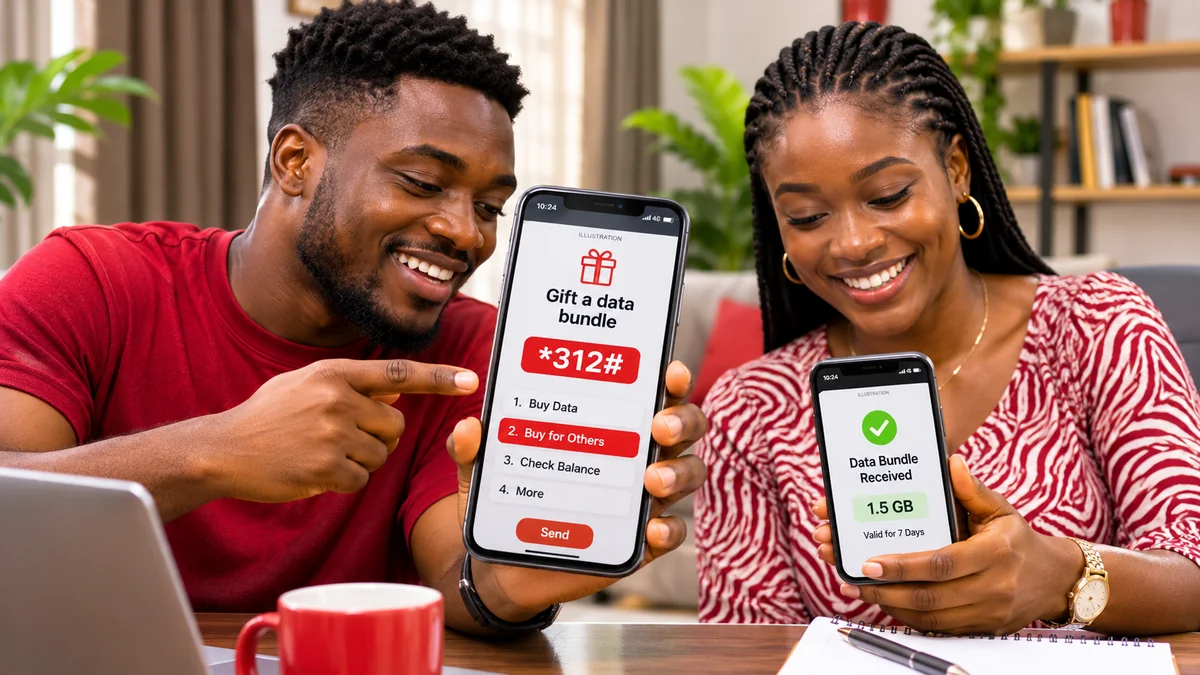
MTN describes “transfer from data balance” and “buy for a friend” as separate options. The latter purchases a new data plan for another line. See MTN's Data Gifting FAQs for the official distinction.
Method 1: Check remaining MTN data with *323*4#
For most MTN Nigeria customers, the clearest starting point is the network's data-balance USSD option.
- Open the Phone or Dialler app on the MTN handset.
- Enter *323*4#.
- Make the call using the correct MTN SIM, especially on a dual-SIM phone.
- Read the network response for your available data, any separately displayed bonus allocations, and applicable validity information.
- If you sent data, compare the result with your previous balance and the confirmed amount transferred.
MTN lists this code for checking the main data bundle and bonus. The exact response format can differ by plan or service menu. If you have several active bundles, do not assume the first number shown represents every bundle combined. MTN's Data Bundles FAQ explains that individual bundles may have different expiry dates.
Method 2: Send an SMS to check your balance
If you prefer a text-based check or the USSD screen closes before you can read it, use MTN's published SMS option:
- Open your SMS app.
- Compose a new text message to 323.
- Enter only 2 in the message body.
- Send the message from the MTN line whose data you want to inspect.
- Review the reply and note the remaining quantity and any expiry details provided.
These are MTN's official SMS instructions for checking a data-bundle balance, including gifted data. They are different from the transfer-by-SMS command sent to 312; do not confuse the two short codes.
Method 3: Check through the myMTN app
For readers who want to monitor usage more regularly, the official myMTN app is another supported option. Menu names and dashboard layouts may change with app updates.
- Install or open the official myMTN app from an approved app store.
- Sign in or verify access to the MTN phone number you wish to inspect.
- Open the data balance or usage section shown on your account dashboard.
- Review the remaining bundle, any bonus balance and its validity details where available.
- Refresh the screen if it appears to show older information, then compare with a fresh USSD or SMS balance check if necessary.
MTN also identifies its web self-service portal and the Zigi assistant as options for viewing data-bundle balances. Check links from MTN Nigeria's official website instead of clicking unknown “free data checker” advertisements.
How recipients check the data they received
A recipient should check their own MTN number, not ask the sender to read their data balance. On the receiving SIM, dial *323*4#, text 2 to 323, or open the myMTN app. These checks establish what the network currently reports for that recipient.
If data was transferred from someone else's existing balance, MTN says the received data is consumed before the recipient's active data bundle. If a new bundle was bought for the recipient, MTN instead explains that bundles with the shortest validity period are normally used first. These are different scenarios, so a recipient with several active plans should check the bundle details and expiry dates before concluding that gifted data has disappeared.
MTN also states that transferred data does not auto-renew and cannot be rolled over. A separately purchased gifted bundle may have different renewal and rollover conditions. Confirm the type of gift rather than treating all shared data as one identical product.
Example: calculating what remains after an MTN transfer
Suppose an eligible MTN bundle shows 3GB before sharing, and you successfully transfer 500MB to another MTN customer. Ignoring any other usage, the sender should have about 2.5GB left from that bundle under a simple 1GB = 1,000MB illustration. Actual displayed units and allocation rounding may vary.
The recipient should gain access to the 500MB transfer, but their displayed total may be affected by other active plans and any usage since receiving the gift. The sender should not expect to see how much of the recipient's transferred data remains simply by checking their own line.
For the cleanest comparison, record three facts: the sender's balance just before the transaction, the confirmed amount transferred, and the sender's balance immediately afterwards. Then have the recipient check their own line. If background apps or a hotspot were active during the process, additional consumption may have occurred.
Why your MTN balance may be different from what you expected
1. You purchased data for a friend instead of transferring your own
A “Buy for a Friend” transaction is charged as a purchase of a new bundle. It does not necessarily subtract data from the sender's current bundle. If your own data remains unchanged but the recipient gets a plan, that may be exactly what happened. Check the confirmation of the transaction before assuming the gift failed.
2. You have several bundles or bonus balances
Daily, weekly, monthly and promotional allocations can be separate. MTN notes that bundles can have different expiry dates; some bonus and special bundles are not eligible for transfer. In addition, you cannot combine small balances from several different plans to meet a single transfer amount. Inspect the particular eligible balance rather than adding unrelated allowances together.
3. Your phone used data while you were sharing
Streaming, automatic app updates, photo backups and hotspot connections can change your balance. The figure seen several minutes later may reflect both the gift and ordinary mobile-data use. MTN recommends checking device-level app usage and its app to investigate unexpected consumption in its Manage Data guidance .
4. The transfer was restricted or did not complete
Not every MTN bundle can be transferred. MTN's current gifting FAQ lists supported transfer sizes of 100MB, 200MB, 500MB, 1GB, 2GB, 3GB and 5GB, a requirement to retain at least 100MB after a transfer, and a total transfer-from-balance limit of 5GB per day. Some plans have further restrictions. A failed attempt should not be counted as a successful gift without a network confirmation.
5. A balance response is delayed or the wrong SIM was used
Network delays, an older app view or selecting the other SIM in a dual-SIM device can cause confusing results. Recheck the correct line using a second official channel. Do not keep repeating a transfer while its status is uncertain; first confirm whether the recipient received the data.
How to confirm an MTN sharing transaction without sending again
Start with the transfer or purchase confirmation message, then ask the recipient to check their own balance. Where available, inspect activity in the official app. If the sender's balance fell but the recipient reports no data, record the date, time, sender's number, recipient's number and amount, without sharing sensitive security credentials. Contact MTN through its official support options for a transaction-specific review.
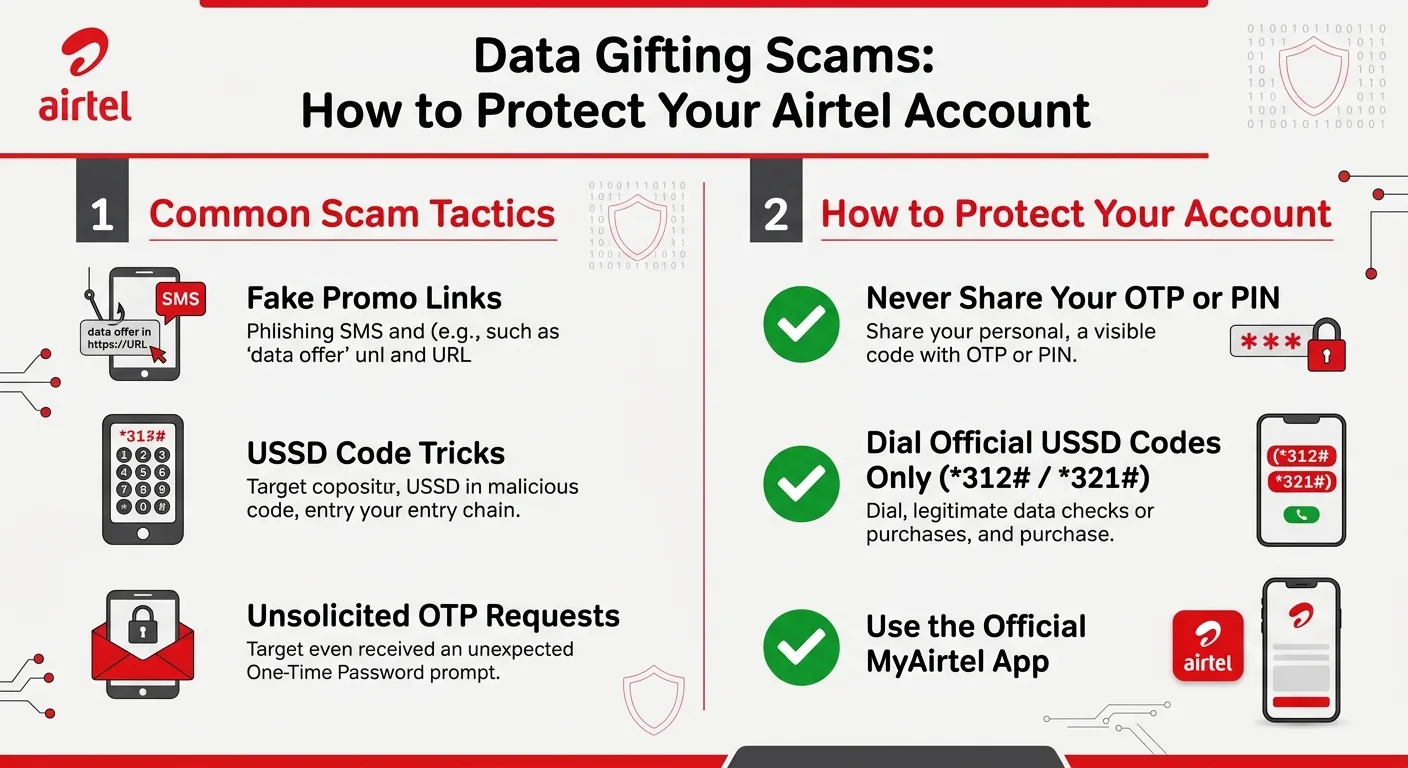
Data sharing does not require disclosing your banking PIN or one-time password to a stranger. Be cautious of unsolicited links promising to “restore” missing data or inspect someone else's account. For broader phone-number protection, read FlyingEze's guide to SIM swap fraud and mobile account security .
Monitor data usage on your phone between balance checks
USSD and SMS tell you what MTN currently reports. Your handset's usage statistics are a useful companion for finding which apps are consuming the allowance, although the phone's usage counter is not necessarily identical to the operator's billing record.
Android
Look in Settings for Network & internet, SIMs or Data usage (wording depends on the phone). Inspect usage by app, enable Data Saver if useful, and set alerts or limits where supported. Match the phone's measurement period to your bundle's period before drawing conclusions.
iPhone
Open Settings → Cellular or Mobile Data to examine consumption by app. Consider Low Data Mode or disabling background activity for selected apps. The displayed statistics may cover a different time period from the MTN bundle, so treat them as a diagnostic tool rather than the final balance.
For both platforms, keep a short record of your balance before and after transfers, especially when you share data frequently. This makes unusual changes easier to investigate.
Practical ways to avoid running out of data after sharing
- Check before you transfer. Verify that enough eligible data remains for your own browsing needs and MTN's minimum retained balance requirement.
- Check the recipient's number twice. A transfer to the wrong line is harder to resolve than a typo caught before confirmation.
- Keep bundle expiry in mind. Sharing near the end of a plan's validity may leave little time to use the remaining data.
- Limit background usage. Review automatic backups, app updates and high-resolution streaming.
- Secure your hotspot. Disable it when not needed and use a strong password so unknown devices cannot consume your allowance.
- Use official channels. Prefer MTN's app, USSD, SMS and verified support pages over untrusted apps requesting account access.
Frequently asked questions
What is the MTN code to check remaining data after sharing?
Dial *323*4# on the MTN line you want to check. MTN also lists texting 2 to 323 and using the myMTN app.
Can the sender check how much gifted data a friend has left?
The sender's ordinary balance check is for the sender's line. The friend should check their own MTN balance. Do not confuse the amount you transferred with the amount the recipient has left after using some of it.
Does gifting MTN data always reduce my own balance?
No. Transferring from an eligible bundle reduces data on the sender's line; buying a new bundle for a friend is a purchase and does not use up that same existing data balance.
Can I transfer all the remaining data on my MTN bundle?
Not necessarily. MTN requires that at least 100MB remains after a transfer and limits transfer sizes and eligible plans. Its published maximum transferred from a data balance is 5GB per day, subject to plan rules.
Why does the gifted bundle expire even if data remains?
Bundles are governed by validity periods. MTN says transferred data does not roll over or auto-renew, while purchased gifts may have different conditions. Always check the expiry information along with the number of megabytes remaining.
Conclusion
To check remaining data after sharing an MTN bundle, start with *323*4#, SMS 2 to 323 or the official myMTN app. The crucial next step is to identify whether you transferred data from your existing balance, bought a separate plan for someone else or simply used a hotspot. Each affects the balances differently. Verify the sender and recipient on their own lines, check expiry dates, and investigate any unexpected deduction with MTN's published guidance rather than guessing.
Editorial verification: 12 November 2026. Codes and bundle rules were checked against MTN Nigeria's official help pages; the instructions were not independently tested using a live MTN SIM.