
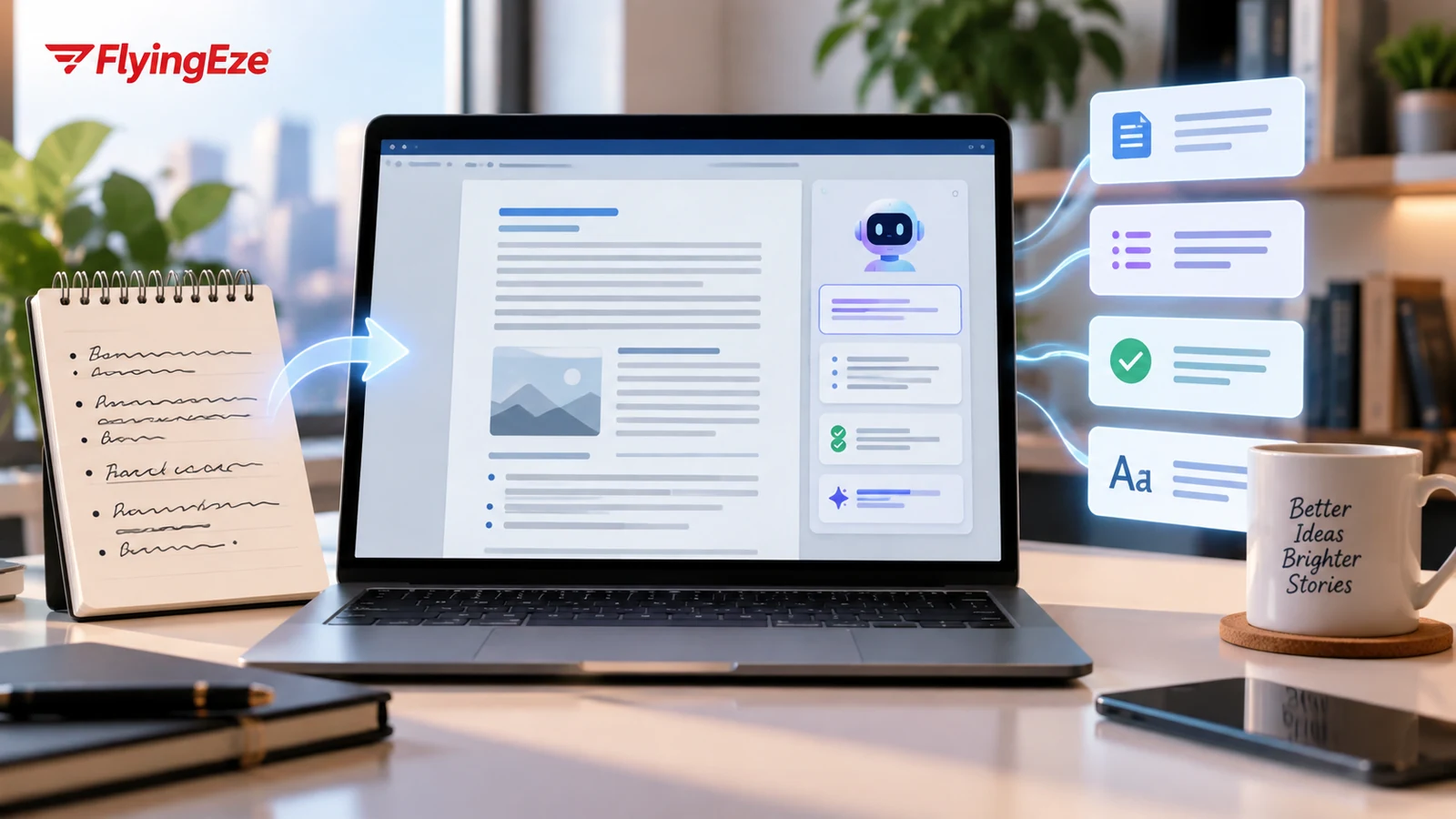
OpenAI has launched ChatGPT for Microsoft Word, bringing its AI assistant directly into one of the world’s most widely used document-editing applications.
The feature was announced on 17 September 2026 and works through a ChatGPT sidebar inside Word. Users can ask questions about the open document, turn notes into a first draft, summarise long material, revise selected passages and adjust document structure without leaving the editor.
What ChatGPT for Word can do
OpenAI says the Word integration is designed around common writing and editing tasks rather than simply adding a chat window beside a document.
Examples include turning rough notes or source material into a memo, proposal or report; creating an executive summary; rewriting a section for a different audience; reorganising content; adjusting headings and numbering; improving formatting; and checking a draft for unclear language or inconsistent terminology.
Because ChatGPT can work with the document currently open in Word, users can ask follow-up questions about the material they are editing rather than repeatedly copying and pasting text into a separate browser session.
Available across ChatGPT plans
OpenAI’s release notes say ChatGPT for Word is available across ChatGPT plans, including Free, subject to the usage limits associated with each plan.
The Word integration uses the same Microsoft add-in family as OpenAI’s Excel and PowerPoint integrations. Users install the ChatGPT add-in from Microsoft Marketplace, open it from Word’s ribbon and then sign in with their ChatGPT account.
What changes for everyday document work
The biggest practical change is workflow. A user editing a long document no longer has to move between Word and a separate AI interface for every revision.
For example, someone preparing a business proposal can keep the original document visible while asking ChatGPT to shorten a section, make a paragraph clearer, reorganise headings or create a summary for executives.
Students, researchers and professionals may also use the sidebar to clarify dense passages, improve structure or identify inconsistent terminology. As with any AI-generated material, important factual claims, calculations, quotations and citations should still be checked before publication or submission.
Business and organisation controls
For organisations, availability can depend on administrative settings.
OpenAI says ChatGPT workspace administrators can control whether Word access is enabled, while Microsoft 365 administrators must also allow the add-in in their environment.
That means companies and schools can decide whether the tool should be available to their members and can align deployment with their own data-governance, compliance and security requirements.
What the add-in does not change
ChatGPT for Word does not remove the need for human review. AI-generated wording can still be inaccurate, incomplete or inappropriate for a particular audience.
Users working with legal, financial, medical, confidential or otherwise sensitive documents should follow their organisation’s policies before submitting material to any AI system.
The integration also does not automatically make every document better. The quality of the result still depends on the source material, the instructions given to ChatGPT and the amount of human editing applied afterwards.
Word joins Excel and PowerPoint
The release expands OpenAI’s strategy of bringing ChatGPT into familiar productivity software rather than requiring users to move all their work into a separate AI application.
With Word joining Excel and PowerPoint, ChatGPT is increasingly positioned as an assistant that can sit alongside day-to-day office tasks including writing, analysis and presentations.
How to get started
OpenAI’s instructions are straightforward: install the ChatGPT add-in from Microsoft Marketplace, open Microsoft Word, launch ChatGPT from the ribbon and sign in.
Once enabled, the sidebar can work with the open document and selected text. Users should still review changes before accepting them, particularly where tone, accuracy or formatting matters.
The launch makes AI-assisted drafting and editing more accessible inside a tool many people already use every day, while putting more pressure on organisations to define clear rules for how AI should be used with workplace documents.