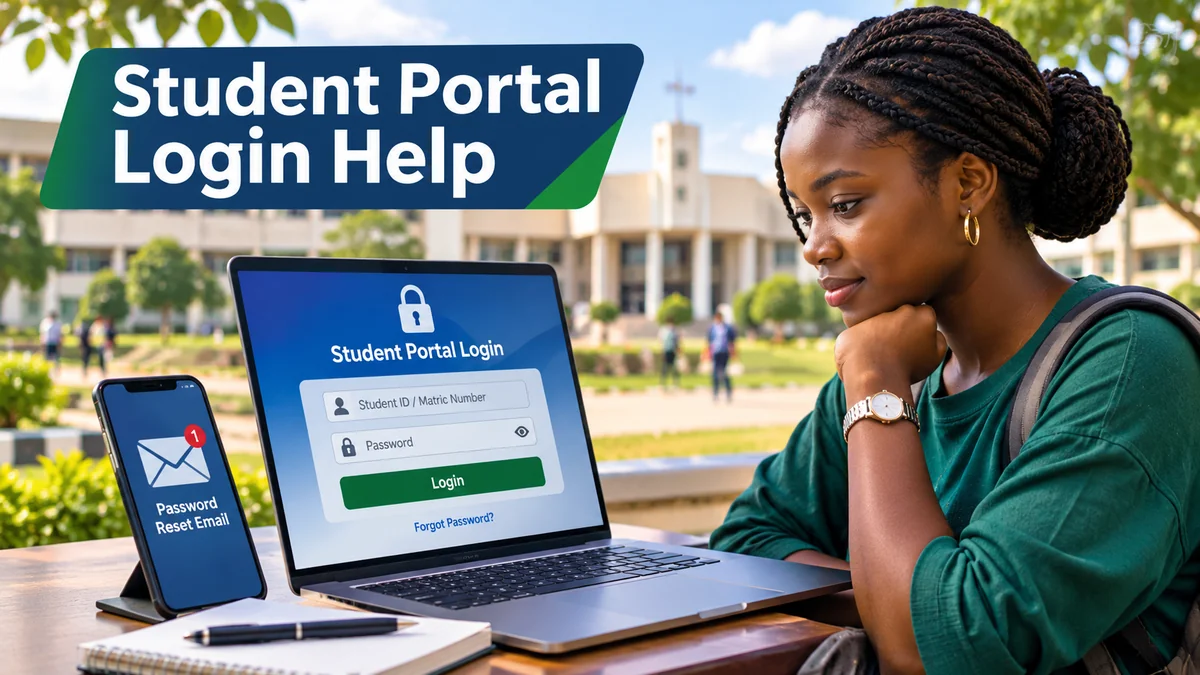
Unable to log in to a university student portal? Start by checking that you are on the correct official website, then confirm the required account identifier, use the portal's own password-reset option and test a clean browser session. If the same problem continues, contact the institution's verified support team with the exact error message—not your password or one-time code.
For people searching for the UNIABUJA portal, these checks matter because the University of Abuja uses different online systems for undergraduate services, applications and e-learning. A working password for one service does not necessarily unlock another. This guide explains what to do when a login fails, an email reset never arrives, a page will not load, or registration remains unavailable after signing in.
First, identify the problem
Read the message on the screen before repeatedly trying to log in. Different symptoms require different fixes:
| What you see | Likely issue | Best first action |
|---|---|---|
| Invalid username or password | Wrong identifier, outdated password or account not yet activated | Check the portal's login label and use its password-recovery function |
| No reset email | Incorrect registered email, spam filtering or email-delivery delay | Check all mail folders, then contact support through an official channel |
| Account not found | Record not yet created, wrong portal or mismatched details | Verify the exact service and registration details before requesting a record check |
| Page keeps refreshing | Browser cookies, session problem or unstable connectivity | Try a current browser and clear only the site's data if necessary |
| 403, 500, 502 or 503 error | Access restriction or possible server-side fault | Save the error and time, retry later, and report persistent failures |
| Login works, registration fails | Payment, eligibility, academic-session or workflow issue | Check the dashboard status and ask the relevant unit to verify the record |
This is a practical diagnostic guide, not a claim that every error has been confirmed on UNIABUJA's live servers. The correct remedy depends on the message and the university's current rules.
Use the right official University of Abuja portal
The university's official website is the safest starting point when you are uncertain which service applies. Search results for “UNIABUJA portal” can lead to outdated instructions, archived application pages and unrelated universities.
The University of Abuja Undergraduate Portal describes access to admissions, academic registration, results and payments. Its password-reset page asks for an email address. The university also maintains an integrated applications portal with links for different programmes. Its separate e-learning password-recovery page allows users to search by username or email address.
Do not assume that these systems share credentials. Choose the platform that corresponds to your student status and current task. For a broader explanation of how universities divide admissions and academic services, see FlyingEze's student registration and course-selection guide ; that article covers NOUN, not UNIABUJA, so its institution-specific steps should not be copied.
Some older UNIABUJA application guidance instructs first-time applicants to use a JAMB registration number and surname as initial credentials. At least one currently accessible university instruction page is expressly labelled 2020/2021. Treat such instructions as historical rather than proof of the correct password for 2026/2027. Follow the instructions shown on the specific current portal or provided directly by the university.
Step 1: Check your login details without guessing repeatedly
Identify the correct username
Look at the field label and any current onboarding email. A portal may request a registered email, JAMB registration number, application number, matriculation number or another ID. These are not interchangeable. Copy your identifier from a reliable university document where possible; check digits, letters, punctuation and leading zeros.
Re-enter your password carefully
Check Caps Lock, keyboard language and accidental spaces. On a trusted device, the password-visibility control can help you spot a typing mistake. If your browser auto-fills an old password, remove that autofill entry for the login attempt and enter the password you most recently set. Avoid retrying many guesses, which could trigger security controls.
Check whether your student account is active
Fresh students sometimes have access to an application process before their full academic record is ready. Completing an admission form, making a payment and activating a student account may be separate stages. An “account not found” message therefore is not by itself evidence that admission has been cancelled.
Step 2: Reset a forgotten UNIABUJA portal password
The undergraduate portal's published reset form asks users for their email address and says a reset link will be emailed. To try that process:
- Open the university website or the verified undergraduate-portal address rather than a link from an unsolicited message.
- Select Forgot password or go to the undergraduate reset page.
- Enter the email address registered to that specific account.
- Submit the request once and check the inbox, spam, junk and promotions folders.
- If a genuine reset message arrives, follow its instructions and choose a new, unique password.
- Return to the official login page and test the new password without relying on saved autofill credentials.
Only the owner of the registered mailbox should complete the reset. If the system says that an account cannot be found, confirm whether you are using the correct email and portal; do not enter unrelated identities in an attempt to discover accounts.
For the e-learning service: the official recovery screen offers a username search or email-address search. A reset initiated there is for that learning environment; it should not be assumed to update a separate undergraduate or admissions account.
Step 3: What to do if the password-reset email does not arrive
First, search your mailbox for “password”, “reset”, “UNIABUJA” or the relevant portal's sender, and check junk folders. Allow a reasonable delivery interval rather than generating many new links in succession; later requests can make older links unusable, depending on the system.
Next, verify whether you still have access to the mailbox used during registration. If you changed your email address, mistyped it on an admission form or have lost access to the old mailbox, the reset form may not solve the underlying problem. Contact official support and ask about the university's identity-verification and account-recovery procedure. Do not ask a third-party “portal agent” to log in for you.
In any unexpected reset email, examine the destination before entering credentials. The US Federal Trade Commission recommends contacting organisations through a website or contact channel you independently know to be genuine rather than trusting a suspicious message's links.
Step 4: Fix a portal that will not load or keeps logging you out
Test the internet connection
Open another trusted website to see whether your data connection works. If mobile data is unstable, try a reliable alternative network. Do not enter a password over a network that displays suspicious captive-portal prompts or certificate warnings.
Try a clean browser session
Refresh the page once, install browser updates and try a second mainstream browser. If the portal behaves differently there, the fault may involve local cookies, extensions or settings. Browser help from Google confirms that clearing cached data and cookies can address some website loading or formatting issues. Clear data for the affected site first rather than wiping every website's data; you may need to sign in again afterward.
Private browsing can help identify session-related problems, but it is not guaranteed to solve them. Some sites depend on cookies that private mode restricts. Do not turn off all security protections just to make a login work.
Recognise possible server-side faults
A blank page, gateway error or temporary server failure can arise even when the user's details are correct. Note the exact error code, date and approximate time, test again after a short interval and check official university announcements. Repeatedly changing your password will not fix a server outage.
If the browser reports a certificate mismatch or an unsafe connection, stop rather than bypassing the warning. Confirm the address through the official university website.
Step 5: Separate login problems from registration and payment problems
Sometimes students reach their dashboard successfully but cannot register courses, generate a receipt or see a recent payment. These are not necessarily authentication failures. Check the account's displayed academic session, registration status, payment history and any notices about missing documents or approval.
If a payment was deducted but the portal has not updated, keep the transaction reference and receipt. The university's older application guidance describes a payment re-query process, but the exact controls may differ on today's platform. Follow the current payment or reconciliation instructions; do not immediately pay again simply because a page failed to refresh.
The university's 2026/2027 proposed academic calendar , published on 23 November 2026, lists online student registration as beginning on 19 October and late portal registration with charges beginning on 23 November. These are dates in a document expressly labelled proposed; confirm operative deadlines and any fees directly with the university before acting. A login failure close to a deadline should be reported promptly and documented—it is not an automatic exemption from registration rules.
Step 6: Contact the correct UNIABUJA support channel
If self-service recovery fails, choose the support channel connected to the specific platform. The university's integrated application guide lists ips.helpdesk@uniabuja.edu.ng for application-related assistance. Its official Information Technology and Management Services page lists itms@uniabuja.edu.ng for the IT unit. These addresses appear on university-controlled pages; nevertheless, explain which portal you are using and allow the receiving team to direct you if another unit owns the issue.
Provide only the details needed to locate the problem:
- Your full name and student category (applicant, newly admitted or returning student).
- The exact official portal address and relevant academic session.
- Your application or matriculation identifier if requested through an official support process.
- The error message, approximate time, device and browser.
- A cropped screenshot that hides passwords, one-time codes, financial information and unrelated personal records.
- Any registration or payment reference relevant to the fault, with sensitive parts redacted where possible.
For example: “I am a returning undergraduate student trying to access the registration dashboard. On 25 November 2026 at approximately 09:00 WAT, the page displayed ‘account not found’ after I entered my registered identifier. I confirmed the portal address and tried the password-recovery page. Please advise how to verify my account status.”
Do not email your password, OTP, complete bank-card number or an unrequested identity document.
Protect your student account from fake portal links
Login trouble creates an opening for scams. A social-media account may offer to “unlock” a student dashboard for a fee, or a WhatsApp message may mimic a university helpdesk. Neither a convincing logo nor a screenshot proves that a link is official.
Type the university address yourself or navigate from the university's main website, verify the complete domain, keep your own reset codes private and use a unique password. If multi-factor authentication is offered, enable it. The FTC's phishing guidance supports independently verifying suspicious requests and using additional authentication.
FlyingEze has also explained the warning signs of fake student-loan portals and impersonation scams . The same caution applies to supposed university login assistance: never surrender your credentials to an unverified intermediary.
If you have already entered a password on a suspicious page, change it through the official service as soon as you can, secure the associated email account, review any account activity available to you and alert the university's verified IT contact.
Frequently asked questions
What is the official UNIABUJA undergraduate portal?
The University of Abuja hosts an undergraduate portal at ugportal.uniabuja.edu.ng . You can also start at uniabuja.edu.ng to verify current service links. A publicly indexed login page is not proof that every backend service is accessible at all times.
Can I recover my UNIABUJA portal password without my registered email?
The undergraduate reset form requires an email address. If you no longer control the registered account, ask the university's authorised support team about its identity-verification process; do not use unofficial password-reset agents.
Why does the portal say my details are invalid even though they look correct?
You may be using an identifier intended for a different service, an old password or an account that has not yet been activated. Verify the required field and specific portal before escalating.
Does a successful payment mean I should already be able to log in?
Not necessarily. Payment reconciliation, approval and student-account activation can be separate steps. Keep the payment reference and ask the responsible office to investigate if the dashboard does not reflect the transaction.
What if my login problem occurs on the last registration day?
Take a time-stamped record of the error, contact official support immediately, and ask about the current deadline and any formally announced extension. Do not assume a technical difficulty automatically changes university policy.
Final checklist
Before giving up on a student-portal login, confirm the official service, check the exact identifier requested, use the platform's own recovery form, inspect your registered email, test a clean browser session and preserve the error for support. If you can enter the dashboard but cannot complete another task, describe that specific workflow instead of calling everything a password problem.
For UNIABUJA students, the key is to follow instructions for the current university system and academic session—not a recycled screenshot from an earlier admissions year. That approach is safer, more efficient and gives the support team the information needed to investigate the real issue.