
The safest way to access JAMB CAPS is to begin at the Joint Admissions and Matriculation Board's official website or sign in directly through its e-Facility candidate portal. Candidates use CAPS to view admission information, check whether O'Level results are on their profile and respond to an approved admission offer when JAMB makes the relevant service available. You do not need a third-party website promising “special CAPS access”.
The essential official addresses are www.jamb.gov.ng , jamb.gov.ng/caps and efacility.jamb.gov.ng/Login . JAMB's current e-Facility sign-in asks for the candidate's registered email address and password. Its support instructions place admission access under Check Admission Status / CAPS after login.
This guide focuses on how to reach the genuine system, sign in safely on a phone or computer, recover lost access, identify accredited assistance and avoid imitation login pages. For a full explanation of all admission-status labels and acceptance decisions, use a dedicated CAPS admission guide; the access steps here are intended to help you reach the correct dashboard without exposing your information. Official sources checked: 12 November 2026. Portal menus can change.
Which JAMB CAPS links are official?
| Official address | Purpose | What candidates should know |
|---|---|---|
| www.jamb.gov.ng | Main JAMB website | Use its candidate links for e-Facility, CAPS, accredited centres and support |
| jamb.gov.ng/caps | JAMB's CAPS information and entry page | Choose Candidate, not a staff or institution role |
| efacility.jamb.gov.ng/Login | Existing candidate sign-in | Enter your own registered email and password |
| efacility.jamb.gov.ng | e-Facility service entry point | Services shown can vary by profile and admission cycle |
| support.jamb.gov.ng | Official JAMB candidate support | Check verified FAQs or submit a trackable ticket |
| JAMB accredited-centre listing | Finding authorised CBT centres | Check the current list and whether it applies to your session and service |
These are JAMB-controlled domains. A site with “jamb”, “caps”, “admission” or “2026” somewhere in its name is not automatically an official JAMB service. The secure connection indicator in your browser is useful but HTTPS alone does not prove a website is genuine; look at the entire address.
For example, the legitimate login domain is efacility.jamb.gov.ng. A different site that embeds those words before another unrelated domain is not the same website. Avoid links that direct you to enter your email password into a messaging app, downloadable document or third-party form.
Before logging in: what should you prepare?
For normal access to an existing candidate profile, have the following ready:
- Your registered JAMB email address and profile password.
- Your relevant UTME or Direct Entry registration number and examination year, if the dashboard asks for them.
- A phone or computer with a working browser and stable internet access.
- Access to your registered telephone line or approved recovery route if account verification becomes necessary.
- Time to check the institution name, programme and admission details without rushing.
You should not need to generate an entirely new JAMB profile merely to view a CAPS record already attached to your registered account. Creating conflicting accounts or using another person's email may complicate your records. If you cannot sign in, recover or correct the existing profile using official instructions.
Method 1: Access CAPS from JAMB's main website
- Open a trusted browser and enter https://www.jamb.gov.ng/ yourself.
- Look for the candidate services, quick links or menu item labelled CAPS or e-Facility. JAMB's main website publishes both routes.
- If you open the official CAPS information page, select the Candidate entry rather than Admission Officer, Head of Institution or Desk Officer.
- Continue to the official e-Facility login when directed. Confirm that the destination remains a genuine jamb.gov.ng subdomain before supplying credentials.
- Sign in with your registered email address and password.
- In the candidate dashboard, open Check Admission Status, select the relevant year and registration record if asked, then choose Access my CAPS or the corresponding CAPS link.
- Select the section you need, such as Admission Status, My O'Level or Transfer Approval.
JAMB's official CAPS page describes the platform as the central framework for admission processing. Its visible role options distinguish candidates from institutional officers. A candidate should not try to use an institution or administrator login obtained from someone else.
Method 2: Go directly to JAMB e-Facility
This is generally the shortest route for a candidate who already has an account.
- Type https://efacility.jamb.gov.ng/Login into the browser address bar, or open the login button from the official JAMB e-Facility landing page .
- Enter your registered email address and password into JAMB's own sign-in form.
- After logging in, select the applicable Check Admission Status service. The available service list may vary by year and candidate type.
- Choose the relevant examination year and registration number where prompted.
- Open the CAPS option and read your official admission information.
- Sign out when finished, especially if the device is shared.
The login page we verified has fields for email and password and provides a Forgot your Password? recovery link. If the website looks substantially different or redirects to a strange domain asking for a bank-card PIN, close the page and begin again from JAMB's main site.
Checking admission status is not the same thing as buying a JAMB admission-letter printout. JAMB's official e-Facility offers separate services, some of which attract a disclosed payment. You should not send money to an individual for a supposed “CAPS activation fee” merely to reach the admission dashboard.
How to access JAMB CAPS on Android or iPhone
CAPS is a web-based service, so a smartphone browser can be used. You do not need to install an unknown app or APK that claims to unlock CAPS. On smaller displays, however, JAMB's support guidance has recommended switching to Desktop Site when the CAPS menu does not appear.
- Open your usual browser, such as Chrome or Safari, and visit the official JAMB e-Facility address.
- Sign in to your candidate profile.
- Open the CAPS area through Check Admission Status.
- If you see only a welcome message or cannot see the left-hand menu, open the browser's menu and select Desktop Site or Request Desktop Website.
- Zoom or scroll horizontally if necessary to locate Admission Status, My O'Level or Transfer Approval.
- Finish the required task, verify any recorded response and log out.
Menu wording varies across browser versions. Desktop Site simply asks the browser to display the fuller layout; it does not change your admission status or guarantee that an unavailable feature will become active. If the portal still fails, try a reliable computer or follow JAMB's authorised assistance routes.
Can you access CAPS without your own laptop or smartphone?
Yes, you may use a trusted computer or get assistance from an accredited JAMB CBT centre or JAMB office when a task requires an authorised operator, account correction, result upload or biometric verification. That does not mean every cybercafé is accredited or that every centre offers every service.
Before visiting, consult JAMB's official accredited-centre list and confirm the service and session covered. JAMB's support site notes that visits to its state or zonal offices may require an appointment booked through e-Facility; follow the current office instructions rather than assuming walk-in processing is available.
Never give a centre attendant your profile password merely because they offer assistance. JAMB's published guidance says CBT centres should not demand candidates' passwords to provide authorised services. Where an official process requires fingerprints or identity verification, follow the approved procedure in person.
Ask about genuine, publicly stated service charges before paying. Distinguish an authorised paid transaction from a stranger charging money simply to open a public portal or guarantee admission.
Forgot your JAMB e-Facility password? Use official recovery
If the sign-in page rejects your password, do not keep guessing repeatedly or hand the account to an agent.
Option one: the official reset link. On JAMB's sign-in page , select Forgot your Password? and follow the recovery instructions shown for your registered profile. Check only emails or codes generated by this genuine process.
Option two: JAMB's registered-SIM instructions. JAMB's official FAQ documents a profile-password recovery instruction using PASSWORD, followed by a space and your registered email address, sent by SMS from your original registered mobile number to 55019 or 66019. Follow the current wording and charges displayed in JAMB's guidance, and do not text your actual password to anyone.
Do not confuse a profile code with an e-Facility password. The JAMB FAQ separately describes sending RESEND from the registered line to retrieve a profile code. A profile code is not a replacement for the password required by the candidate login form.
What if you have lost the SIM used to register with JAMB?
Your original telephone number matters because JAMB uses it to associate candidate communications and authorised transactions with the correct person. Start by contacting your mobile network operator about legally recovering or replacing the SIM under your identity, where that is possible.
JAMB has also published an official “Profiled Email” procedure for candidates who have lost access to the registered SIM . It describes visiting an accredited CBT centre, completing the prescribed TEMPL 006 form with available profile details and a new email address not previously registered on JAMB's platform, and having the authorised centre process the request.
The new email must then be verified by the candidate. JAMB's guidance states that a successfully authenticated profiled email can support further profile features and candidate communication. This is not a procedure for someone on WhatsApp to remotely take over your account.
Eligibility, identification checks and implementation details should be confirmed with JAMB or its accredited centre. Use the Board's support system if your registered number and email are both inaccessible.
You can log in, but CAPS is not showing your admission: what should you check?
Successful login means only that you have accessed the candidate profile. It does not establish that an institution has recommended or JAMB has approved your admission.
If the status says Not Admitted or Admission in Progress, JAMB's candidate support FAQ recommends checking whether O'Level results are uploaded and verified, confirming that the institution has recommended you and looking for a pending course transfer in CAPS.
JAMB's general FAQ states that candidates who registered with awaiting results must upload those results once available, and that institutions' recommendations cannot be considered when the required O'Level results are absent.
For a student who cannot see a WAEC or NECO record, the next step is to use the appropriate JAMB-approved upload or correction process, not to buy admission from a third party. If your school has published a list while CAPS has not been updated, ask the school's official admissions office whether a recommendation has been sent for JAMB review.
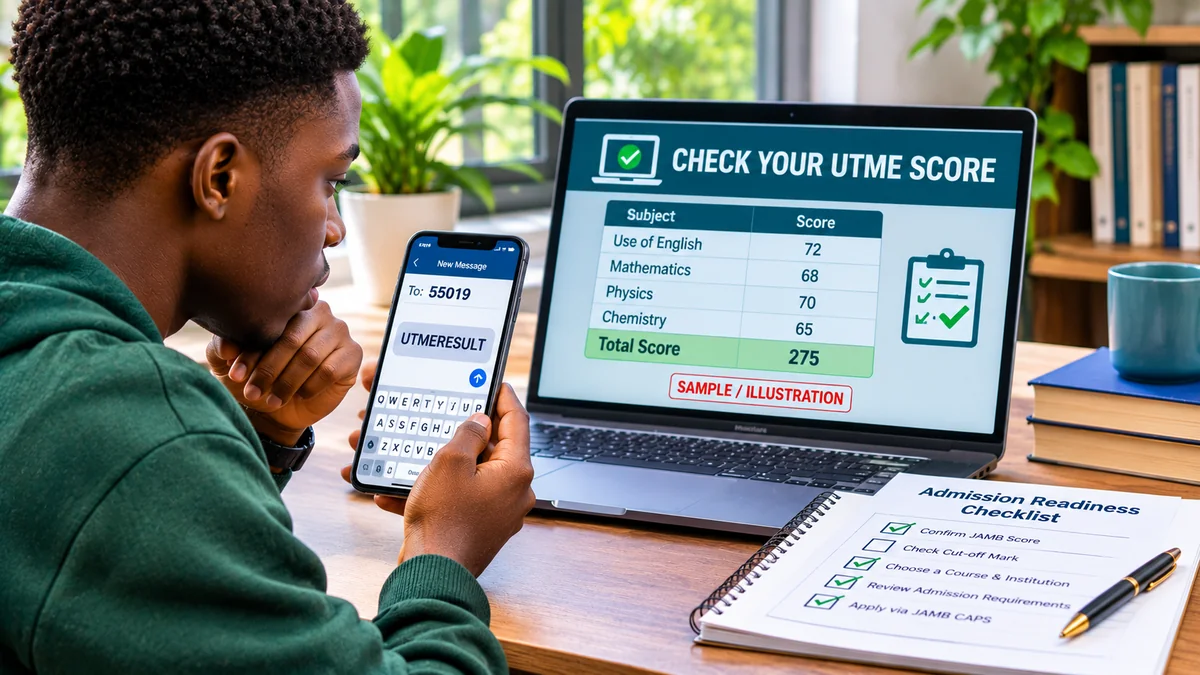
FlyingEze's guide to checking 2026 UTME results explains a different service. A UTME result verifies examination performance; it is not evidence that a final CAPS admission has been granted.
What is the difference between checking CAPS and accepting admission?
There are two separate actions. Checking CAPS lets you read the official admission information associated with your candidate record. Accepting or rejecting an approved offer records a decision that may have significant consequences for your admission opportunities.
JAMB's candidate support materials describe an Admission Status section and the corresponding offer decision when available. Depending on the current session and verification requirements, JAMB may direct candidates to use its registered-phone or accredited biometric acceptance procedures.
Do not assume that every portal screen will display a working acceptance button, or that merely logging in has accepted your admission. Verify the institution and course, use the currently authorised response method, and confirm that your decision was recorded. A proposed Transfer Approval to another course is also different from accepting a final admission offer.
For more detail on admission outcomes, consult JAMB's official CAPS support FAQs. This guide concentrates on safe portal access and account recovery.
How to recognise a fake JAMB CAPS link
Scammers often take advantage of the urgency of admission season. They may claim that candidates must pay for priority login, confirm admission through an unfamiliar link or share a one-time code to prevent an offer from expiring.
| Warning sign | Why it matters | Safer action |
|---|---|---|
| Login page is not on a verified jamb.gov.ng domain | Credentials may be harvested | Navigate directly from JAMB's main website |
| Social-media “agent” asks for email password or OTP | Someone could access or misuse your profile | Use your own login and JAMB support |
| Website promises guaranteed admission after a fee | Admission decisions cannot be purchased through a portal shortcut | Confirm any offer within official CAPS |
| Unknown app or APK claims to open CAPS | It may steal information or compromise the device | Use a normal browser and official addresses |
| Someone offers to accept an admission on your behalf | You may lose control over an important decision | Use the authorised candidate response method |
| Page asks for ATM PIN or complete card security code to check status | Those credentials are unnecessary for the status check | Close the page and return to JAMB's official services |
A website can use an official-looking colour scheme, JAMB logo or browser padlock and still be fraudulent. Verify the complete domain. Do not assume the first paid search result, shared screenshot or group-chat message leads to JAMB.
Keep your JAMB details private. The Board's FAQ specifically warns candidates that centres must not request their profile passwords. If you suspect that you entered credentials on a fake website, change the password through an official route, secure the associated email and contact JAMB support.
JAMB CAPS access troubleshooting checklist
| Problem | Likely issue | Next step |
|---|---|---|
| Cannot find CAPS on a mobile browser | Menu hidden in mobile layout | Try Desktop Site and navigate from Check Admission Status |
| Wrong email or password | Incorrect credentials or account recovery needed | Use JAMB's official Forgot Password process |
| Cannot use registered phone number | Lost SIM or number no longer accessible | Check lawful SIM recovery or JAMB's accredited-centre profiled-email procedure |
| Website is temporarily unavailable | Service interruption, browser or network problem | Retry the official domain later or use official support |
| CAPS opens but no admission offer appears | No approved offer yet or incomplete admission processing | Review My O'Level and ask the institution about its recommendation |
| O'Level subjects are missing | Results not properly uploaded or verified | Use an approved JAMB upload route or accredited CBT centre |
| Proposed course is unexpected | Transfer Approval may be pending | Verify the proposed programme before making a decision |
| Portal asks you to pay for a separate document | Possibly an official fee-bearing e-Facility service | Check whether you selected admission-letter printing instead of status checking |
Always note the examination year. If you are viewing the wrong year's record, the information may not correspond to the current admission exercise. Do not assume a technical problem just because your most recent application is not displayed in an older session.
Where can candidates report unresolved JAMB CAPS access problems?
Use JAMB's official support portal . Its FAQs cover CAPS, profile details, result upload, biometrics and payment enquiries. If a published answer does not address your situation, create a candidate ticket through the portal, select the most relevant complaint category and keep the generated reference.
Explain the precise problem: for example, inability to sign in, missing O'Level record, wrong registration year, a transfer proposal you cannot access or a school admission not appearing in CAPS. Include only necessary identifying information and screenshots that have been checked for sensitive material.
If you need to visit a JAMB state or zonal office, review the support site's appointment guidance. When using a CBT centre, check its accreditation first and avoid handing over control of your email or registered SIM.
As broader context, FlyingEze has reported on an alleged JAMB impersonation case . The report is not evidence that a particular contemporary website is fraudulent, but it reinforces the importance of independently verifying anyone claiming to represent the Board.
Frequently asked questions
What is the official website for JAMB CAPS?
JAMB's official CAPS page is jamb.gov.ng/caps . Candidates can also reach CAPS services by signing in through the official JAMB e-Facility portal.
Can I log in to JAMB CAPS using my phone?
Yes. Open the official JAMB e-Facility website in a smartphone browser and sign in. If the CAPS menu is missing, try the browser's Desktop Site option.
What login details does JAMB e-Facility require?
The current official sign-in page requests your registered email address and password. It also provides a Forgot Password link.
Do I need to pay to check CAPS admission status?
Checking admission status through your existing JAMB candidate profile should not require paying an unofficial agent for access. Separate e-Facility services, such as admission-letter printing or certain corrections, may carry disclosed official charges. Normal internet costs may still apply.
Can I access CAPS with only my JAMB registration number?
Your registration number may be requested after you sign in, but the current candidate e-Facility login first requires account credentials. Do not submit registration details and passwords to an unverified third-party status checker.
What should I do if I forgot my JAMB password?
Use the Forgot Password link on the official e-Facility sign-in page. JAMB also documents a registered-phone SMS profile-password recovery command. Follow current official instructions rather than disclosing your password to a helper.
Can I access JAMB CAPS if I lost my registered SIM?
Check whether your mobile operator can lawfully restore the original number. JAMB has also published a profiled-email process involving an accredited CBT centre, a prescribed form and email verification.
Why does CAPS show Not Admitted after I log in?
Logging in is unrelated to whether an offer is approved. Check whether results were uploaded, whether the school recommended you and whether a transfer proposal is pending. Contact the school's official admissions unit if your institution claims to have admitted you.
Is JAMB CAPS the same as checking my UTME result?
No. UTME result checking concerns your examination score. CAPS concerns the official tertiary-institution admission process and related candidate decisions.
Can a CBT centre log in for me?
Accredited CBT centres can provide designated JAMB services under their authorised procedures, but JAMB says centres should not demand a candidate's profile password. Confirm the centre's status through JAMB's official list.
What if the CAPS portal is not loading?
Check the internet connection, confirm the address, retry through JAMB's official site and try another browser or device. If the issue persists, use the JAMB support portal instead of a substitute website.
Conclusion: use your own official JAMB profile
Accessing JAMB CAPS should be a straightforward process: visit an official JAMB domain, sign in to e-Facility, choose Check Admission Status and open the candidate CAPS service. On a phone, Desktop Site can make hidden navigation easier. If credentials or your registered SIM are unavailable, use JAMB's published recovery procedures.
Most importantly, do not confuse an official CAPS page with a third-party admission service. Keep control of your login details and registered phone number, verify accredited centres, and use the JAMB support system whenever your record or account needs attention.
Editorial disclosure: This guide was researched on 12 November 2026 using official JAMB web pages, candidate FAQs and published recovery guidance. JAMB's menus, services and procedures may change. FlyingEze is not JAMB, does not process candidate admissions and has no sponsored or affiliate relationship with the services described.