WORRIED about your home security? There’s no foolproof way to bust the burglars – but there are some gadget settings that might help keep you safe.
Before you go out and splash even more cash on security gear, there are some clever tweaks that you can make to your phones, smart speakers, doorbells and cameras to make your home as safe as possible – including a clever feature that listens out for glass breaking.
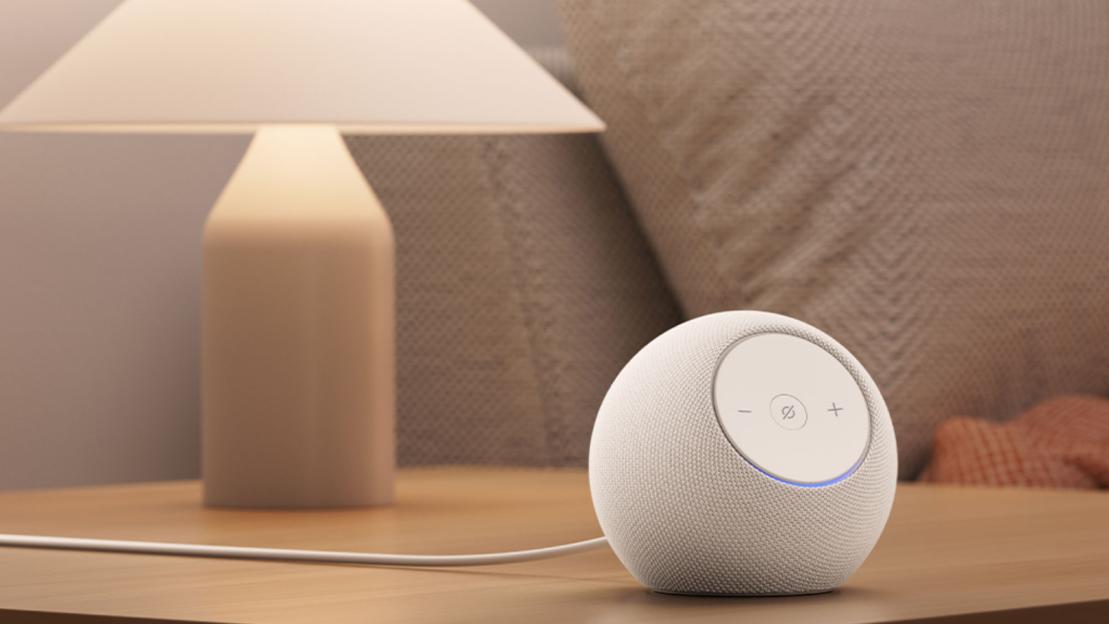 The Amazon Echo speakers can be a great tool if you’re worried about home securityCredit: Amazon
BARKING DOGS
If you have an Echo speaker, you can make it play loud barking dog noises.
Barking are a classic deterrent, but not everyone has a pooch at home.
Alexa, which is the assistant that powers Amazon Echo, has a . These are like downloadable extra features for your Echo.
So you can go into the Alexa app and search the Skills library for barking dog noises – there are loads. Just type in a phrase like “barking dog”, “guard dog”, or “loud bark”.
Then you can either trigger it by asking for that skill using your voice at home, or remotely through the Alexa app.
You can also set it up to happen automatically by linking it to an Alexa Routine, so it can go off if a motion sensor you’ve got set up is triggered.
If you don’t have an Alexa, you can search “barking dog” on Music or , and play that instead.
That way, you can have it work through any speaker, including an Apple HomePod or Home speaker.
And you could still tie it to routines, schedules, or triggers in your device automation settings.
CRITICAL ALERTS
Your home security gadgets – like a or camera – usually deliver notifications when they spot something.
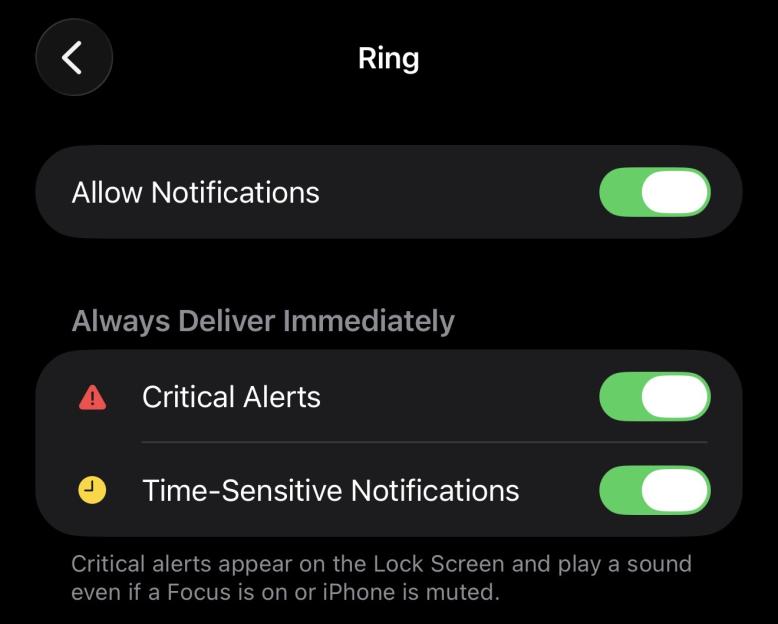 Make sure that you’ve got Critical Alerts turned on for your Ring cameraCredit: Apple / The Sun
It’s half the point of having one.
But if you ever put your phone into Do Not Disturb mode (or a ‘Focus’ mode that works in the same way), you could miss the notifications that the Ring doorbell sends to it.
That’s especially concerning if you mute notifications while you’re asleep.
But your iPhone has a feature called Critical Alerts that lets certain notifications bypass .
And your Ring doorbell supports that feature – you just need to switch it on.
Go into your iPhone’s Settings app, then head into Notifications, and then tap on Ring.
Then you can toggle on Critical Alerts, which will allow critical Ring notifications to appear even with Do Not Disturb mode active.
And those alerts will still play a sound out loud even if your iPhone is muted.
If you have any home security gear, make sure that Critical Alerts are turned on in the settings for their linked .
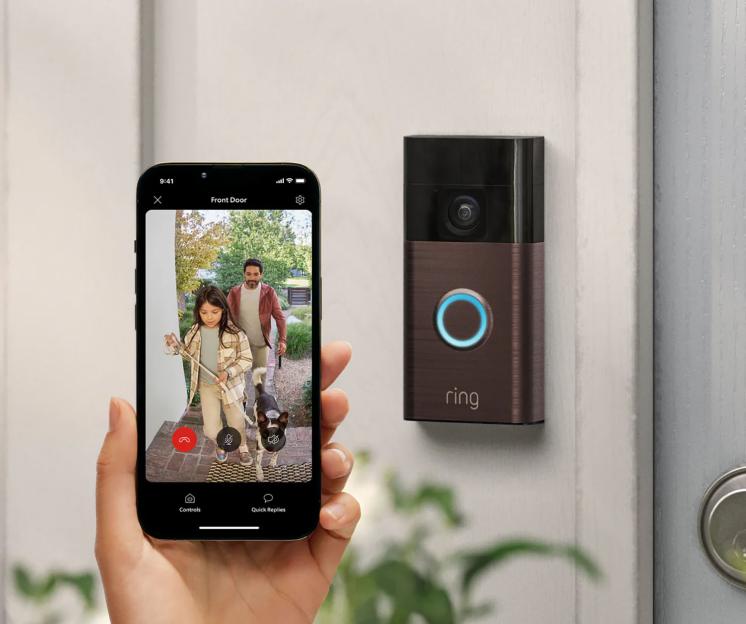 Ring doorbells aren’t always filming – but they are always on the look-out for movement using built-in motion sensorsCredit: Amazon / Ring
SIRENS & ALARM PLUG-INS
Sirens are a great way to scare off intruders – and you might already have one.
That’s because several Ring cameras have built-in sirens that you can activate remotely – even if you’re on the other side of the planet.
The models with built-in sirens include:
- Ring Spotlight Cam Plus
- Ring Floodlight Cam Wired Plus
- Ring Floodlight Cam Wired Pro
- Ring Stick Up Cam
The Ring Floodlight Cam Wired Pro has the loudest siren, reaching 110dB, equivalent to a chainsaw, power saw, or leaf blower.
By contrast, the Stick Up Cam’s is the quietest, coming in at around 75-80dB – more like a vacuum cleaner or an alarm clock.
You activate the siren through the Live View page, so if you’re seeing something that worries you, you can activate it (and explain to the neighbours later).
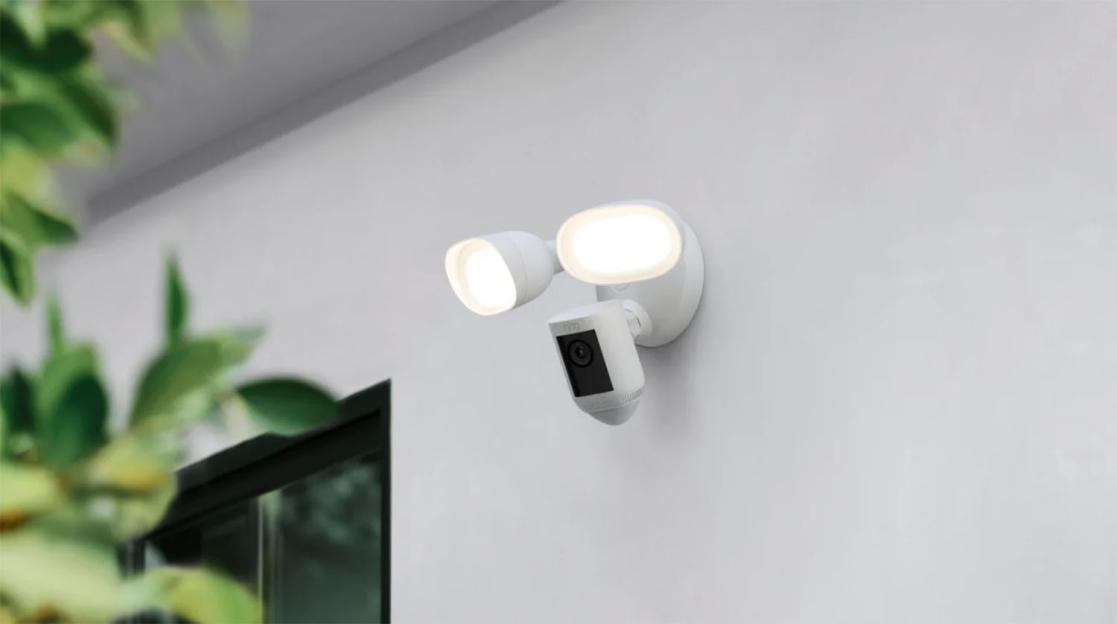 Some Ring products, like the Floodlight Cam Wired Pro, have built-in sirensCredit: Amazon / Ring
If you don’t have the above cameras, then you might want to just buy a Ring Alarm system outright.
They typically come with a siren (that also flashes), and work in much the same way as a usual home alarm would operate.
If you’ve got a Ring Alarm system fitted then you can link the camera to it, letting you sound the siren if the alarm is triggered.
Another option if you don’t have one of the above cameras is to buy a dedicated Ring Alarm Outdoor Siren.
If you just have a regular Ring doorbell, there’s no built-in siren. Your best bet is just shouting through the Two-Way Talk system in Live View.
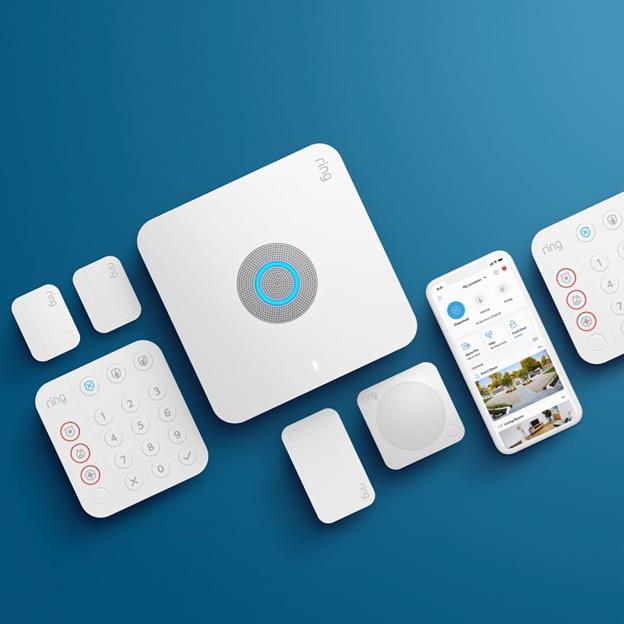 You can buy Ring Alarm kits that also offer a siren functionCredit: Amazon / Ring
SCHEDULE & AUTOMATE YOUR LIGHTING
Putting your lighting on a timer when you’re away isn’t new. People have been finding ways to do it for years, long before lamps that connected to your . It gives you some peace of mind that your home can still look active even when you’re away on holiday.
But it’s certainly much easier in 2026 – and can work in much smarter ways.
There are lots of different types of smart lighting, and they usually come with their own apps.
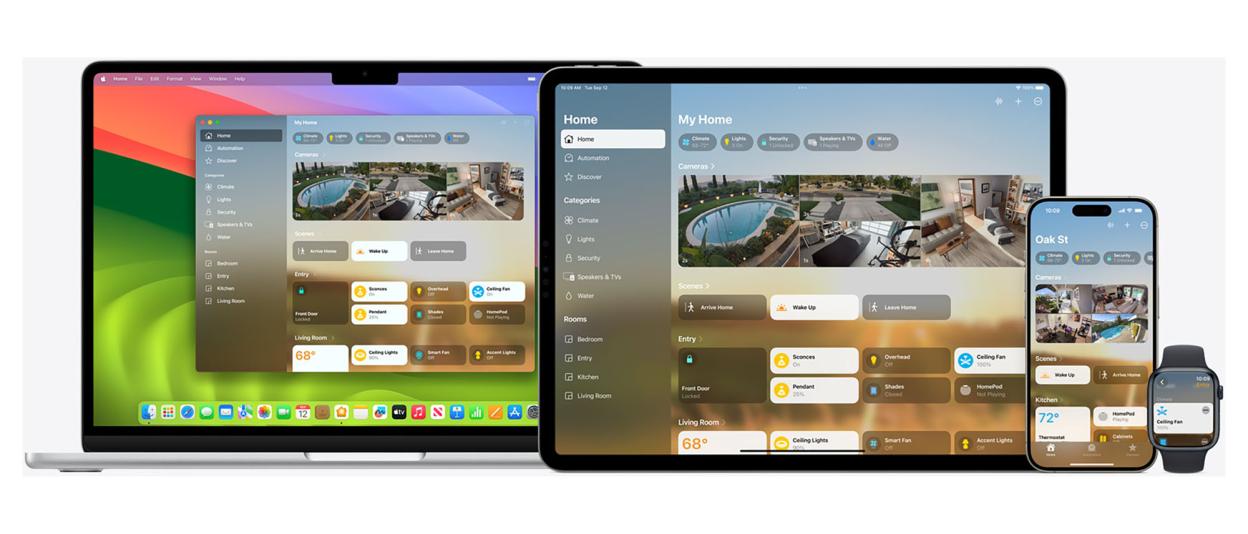 You can use the Apple Home app to schedule and automate your smart lights
But often the easiest way to control them (especially if you have lots of smart devices) is through your device’s main system, like the Apple Home on iPhone or Google Home on .
For Apple Home, you can create Scenes, which let you control multiple lights at once.
So you could have a “night” scene that turns off all the lights, and a “morning” scene that turns them on again.
Then you can create automations that activate these scenes based on triggers.
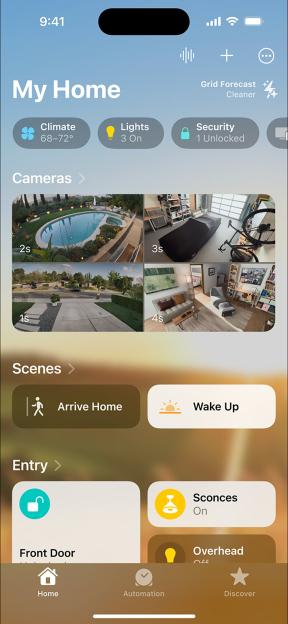 You can use Scenes to control multiple smart lights in one go
So that might be the time of day, like turning on in the morning or off at night.
Or you could have it triggered by your movements.
So if you leave home, the lights turn on or off – and vice versa.
You can also add multiple family members to your home, so it bases the changes on the first person home or last person to leave.
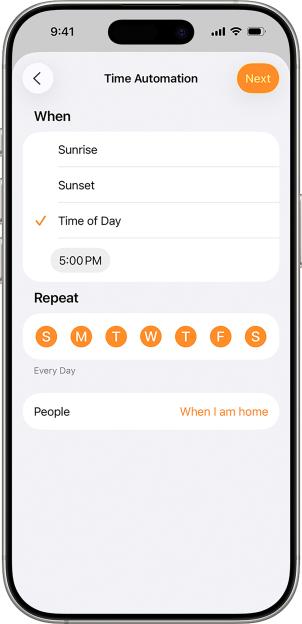 You can set automations to run off times of day, as well as when certain people are at homeCredit: Apple
And then there’s a sensor detection feature, so if a linked motion sensor is triggered, it could cause the lights to turn on.
How you set it up is up to you, but it’s worth considering creating some automations if you’re going away on holiday.
It’s a similar story over at .
You can use Google’s automation system to schedule your lights.
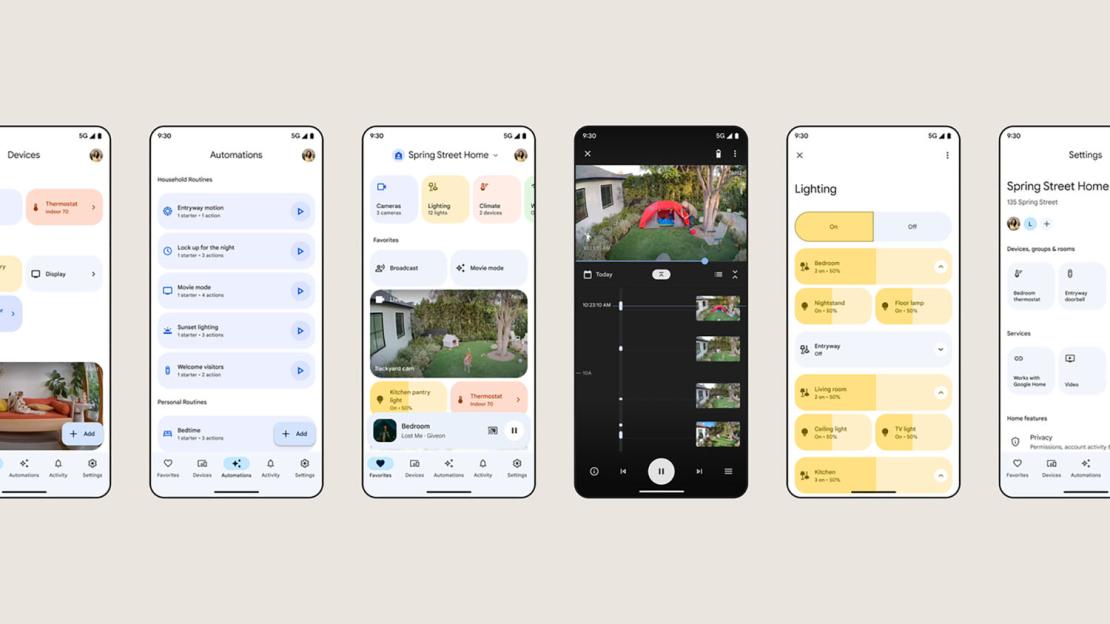 The Google Home app also lets you create automations for your smart lightingCredit: Google
And like in Apple Home, Google Home lets you automate lighting based on the time of day, or when a certain person (or everyone) is at home or not.
For both apps, you can have different schedules for different rooms or groups of lights too.
So have some fun with making your lighting look active while you’re away.
MOTION WARNINGS
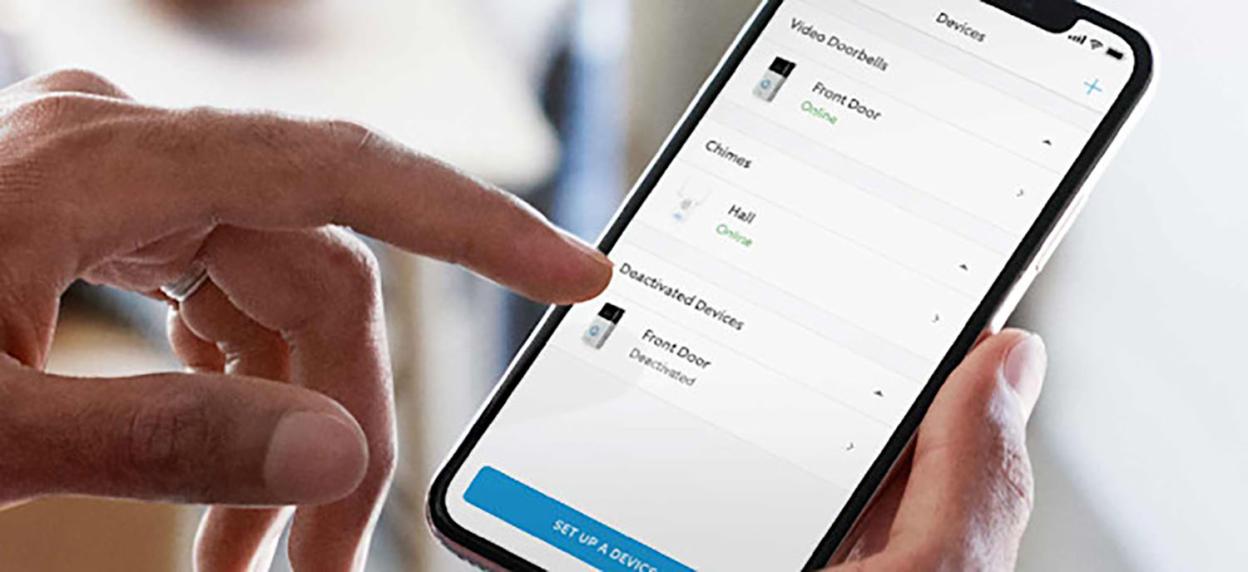 Go into your Ring device settings to set up Motion WarningsCredit: Amazon / Ring
Loads of Ring cameras and video doorbells have a special feature called Motion Warning.
It’s meant to alert people that they’re being recorded when the camera detects motion.
When triggered, your Ring device will say aloud: “Hi, you are currently being recorded.”
This might be enough to spook an intruder, so it’s definitely worth considering.
And at the very least, it might just be polite to let people know that they’re being filmed.
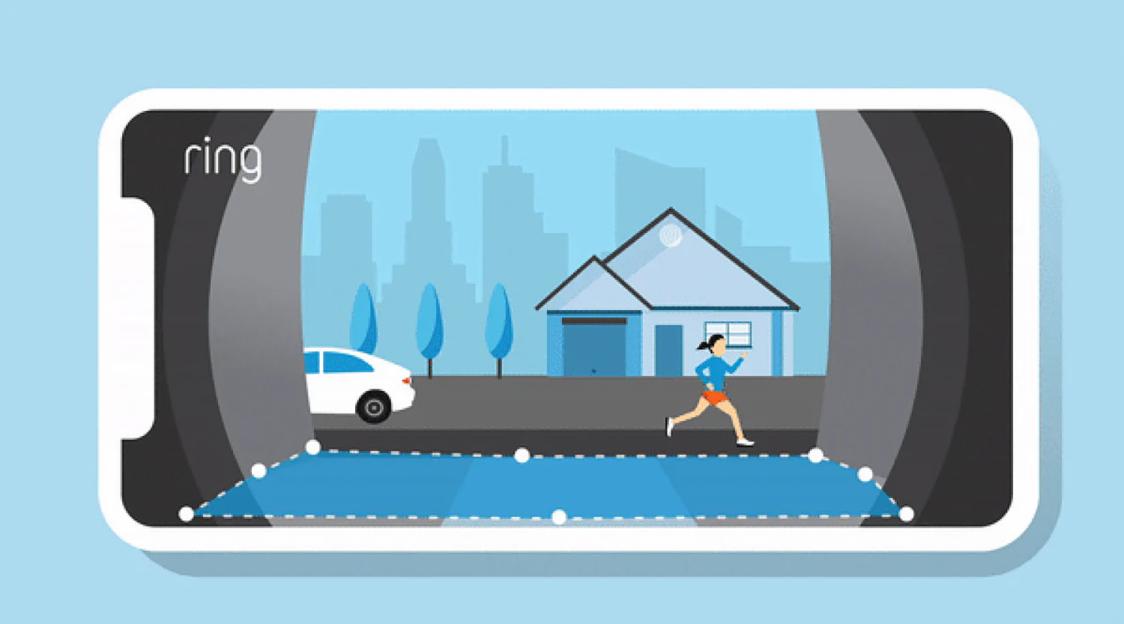 You can set up Motion Zones that limit motion-sensing to specific areasCredit: Amazon / Ring
To turn it on, go into your Ring app and navigate to the main dashboard.
Then tap More (three dots) on the camera you’re trying to modify.
Next tap on the device Settings > Smart Responses > Motion Warning, and turn Motion Warning on. You’ll need a or camera, or this feature won’t appear.
You’ll need to define a (the area which the camera scans for movement) to activate the feature. That way, you can set the Motion Zone to just your garden or driveway.
RING MOTION WARNING – SUPPORTED DEVICES
Here's the official list of Ring devices that are compatible with the Motion Warning feature, accurate at the time of writing...
- Outdoor Cam (formerly Stick Up Cam (3rd Gen))
- Outdoor Cam Plus
- Outdoor Cam Pro
- Stick Up Cam Elite
- Stick Up Cam Wired (2nd Gen)
- Indoor Cam (1st Gen)
- Indoor Cam (2nd Gen)
- Indoor Cam Plus
- Pan-Tilt Indoor Cam
- Spotlight Cam (1st Gen) Wired and Mount
- Spotlight Cam Plus Wired and Plug-In
- Spotlight Cam Pro (2nd Gen)
- Floodlight Cam (1st Gen)
- Floodlight Cam Pro
- Floodlight Cam Pro (2nd Gen)
- Floodlight Cam Plus
- Wired Doorbell Plus
- Wired Doorbell Pro
- Wired Doorbell Plus (2nd Gen)
- Wired Doorbell Pro (3rd Gen)
- Wired Doorbell Elite (2nd Gen)
- Video Doorbell Elite
That’s to stop people from turning it on and having their Ring doorbell shouting at random passers-by in the street.
It’s also worth noting that you can’t adjust the Motion Warning volume. It’s pre-set.
You can also link Motion Warning to Camera Modes so that it turns on or off automatically when your Ring devices are in Home, Away, or Disarmed mode.
Just go back into your device settings, then go to Mode Settings and choose the Mode you want to link with the Motion Warning.
LISTEN FOR GLASS
There are a few ways to go about this one.
Your first option is with an iPhone or .
Both of these have a that can listen out for broken glass.
It will run continuously, and then warn you if it hears them.
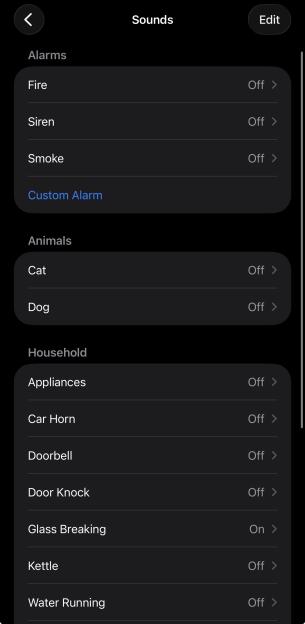 Sound Recognition gets your devices to listen out for problems on your behalfCredit: Apple / The Sun
So if you’re asleep, your iPhone will ping you about the broken glass, even if it didn’t wake you up.
And if you’re wearing an , you should receive the ping there, too.
You can find this feature by going into Settings > Accessibility > Sound & Name Recognition > Sound Recognition and turning it on.
Then you can choose from a long list of sounds that you want alerts for, including glass breaking or shouting.
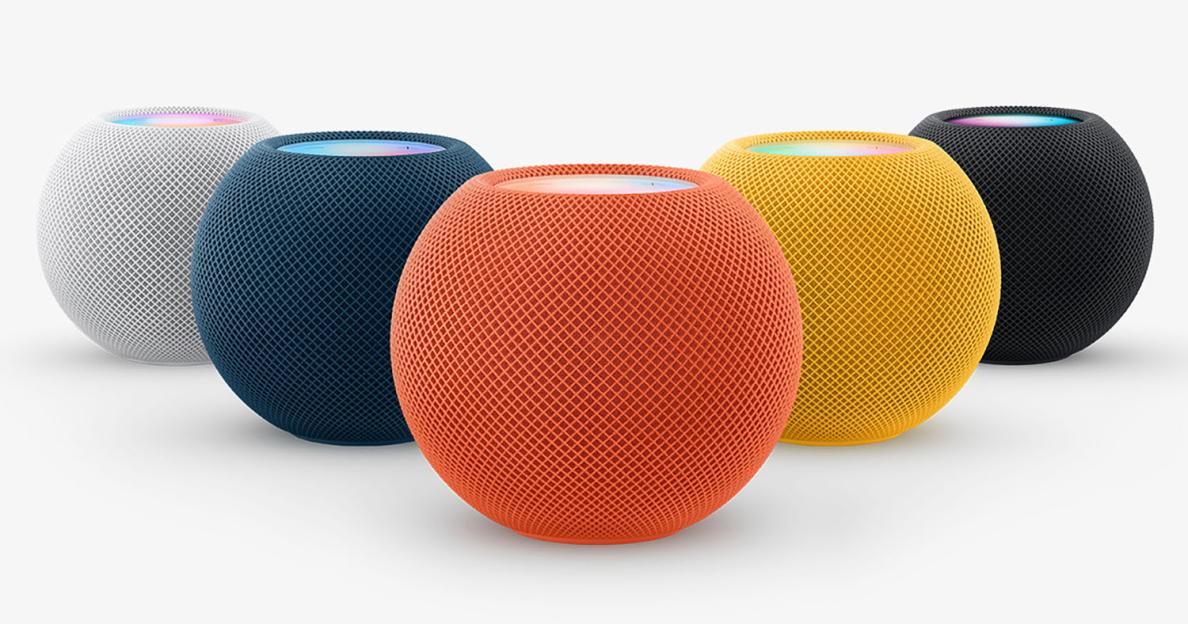 Your Apple HomePod can listen out for smoke alarms and then warn youCredit: Apple
As a bonus tip, you can set your to listen out for smoke and carbon monoxide alarms.
And then it’ll ping your iPhone if it hears one, which might be handy if you’re away from home.
An even better option is available to Google Home speakers.
Unlike the Apple HomePod, your Google Home speaker can listen out for broken glass.
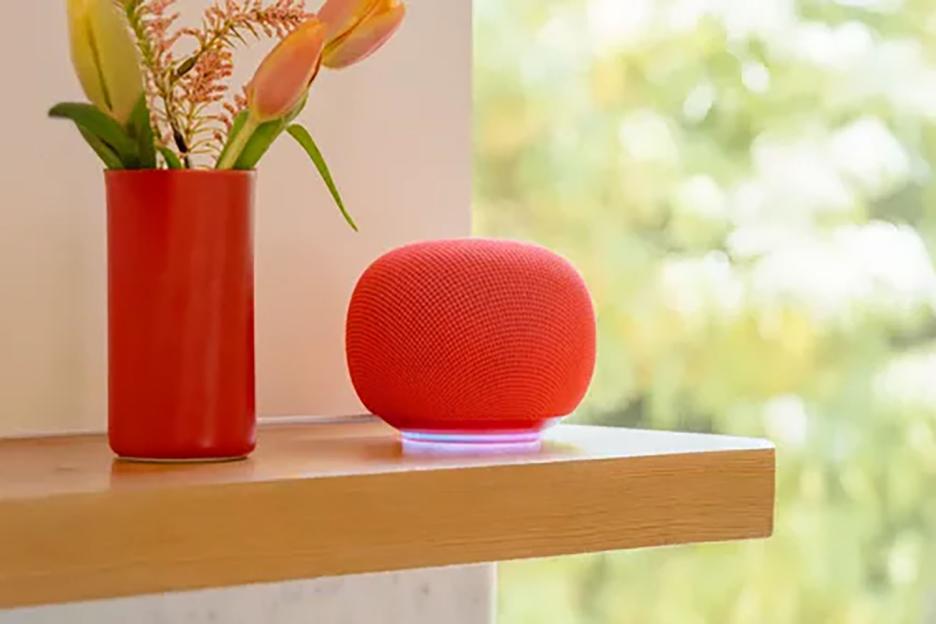 The Google Home speaker can listen out for breaking glass and then alert youCredit: Google
That’s especially useful because your Home speaker might be downstairs listening out while you’re upstairs in bed.
“With sound detection, your speaker or display can notify you of any smoke or carbon monoxide alarm or glass breaking, even when you’re not home,” Google explains.
The catch is that you need to pay for it with a Google Home Premium subscription, which costs £8 a month in the UK.
It’ll work on any of the following devices:
- Google Home
- Google Nest Mini
- Google Home Mini
- Google Nest Audio
- Google Nest Hub
- Google Nest Hub Max
- Google Nest WiFi Point
You can also tune in to listen to the live audio, and even speak through the device.
Also, if you are listening to live audio in your Home app, you can tap on the Emergency Calling button to call the emergency services near your home.
You can choose the sounds that you want to be picked up inside the Google Home app.
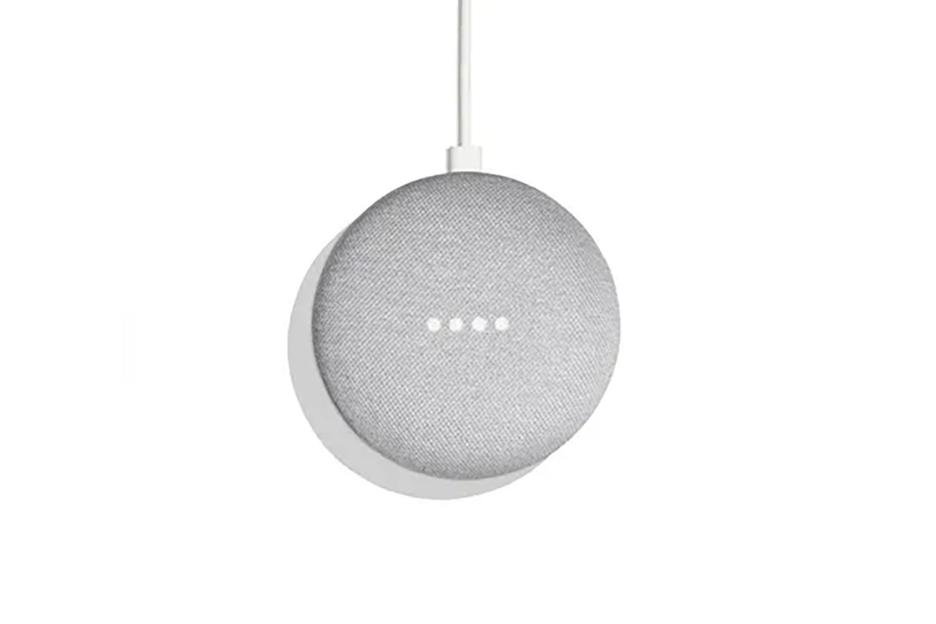 The feature also works on the older Nest Mini speakerCredit: Google
Just go into the app, tap on your profile picture, then go to Home > Subscriptions > Google Home Premium > Sound Detection.
Then under Sounds, turn on Glass Breaking, as well as Smoke Alarms and Carbon Monoxide Alarms if you like.