
SOCIAL media can help kids keep in touch and learn in a fun way – but it also exposes them to almost endless dangers.
With so many and devices, it’s hard for parents to know where to start with keeping kids safe online. But there are some settings absolutely every parent should consider switching on to fend off predators, blur rude pics, and stop kids from accidentally emptying your bank account.
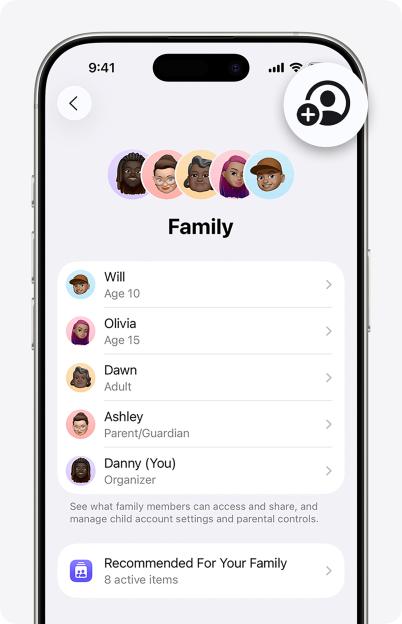 Apple lets you link your child’s Apple Account to your ownCredit: Apple
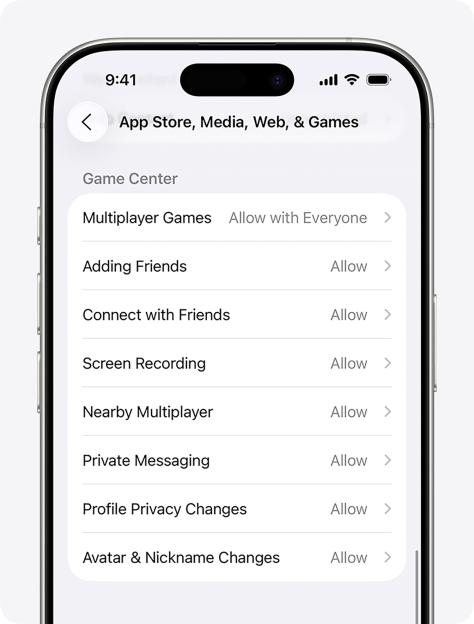 You can very easily control what they see and do on their iPhoneCredit: Apple
DEVICE SETTINGS
Before doing anything else, you should check your child’s phone settings.
Both iPhone and phones have top-level settings to help protect your kid in the vast online world.
For iPhone, go into Settings > [Your Name] > Family > Continue and invite your child. That lets you set up a Family Sharing group, and adds your child’s Account to it.
Now go into Settings > Screen Time and tap on your child’s name under Family. Then choose Content & Privacy Restrictions.
This lets you , including:
- Preventing App Store purchases
- Allowing built-in apps and features
- Preventing explicit content (and managing content ratings)
- Preventing inappropriate web content
- Restricting Game Centre features
- Restricting Intelligence & Siri features
- Preventing changes to privacy settings
- Preventing or allowing changes to other settings & features
You can also view their phone usage, and limit specific apps – or entire categories, like games or social media.
Additionally, you can set age ratings for content (like PG for movies and Clean for books).
On top of that, you can limit specific websites and even totally block adult websites.
Next, go into Screen Time > [Your Child] > Communication Safety and turn Communication Safety on. This is how you protect your child from seeing or sending nude images.
Apple notes: “If Communication Safety determines that a photo or video your child has received or is about to send appears to contain nudity, it blurs the photo or video and displays a warning.
“This warning reassures the child that it’s OK not to view or send the content, and offers ways to get help.”
It’s a similar process on Android phones.
Go into the device settings, tap Parental Controls, then turn on Controls for this phone – and set up a PIN.
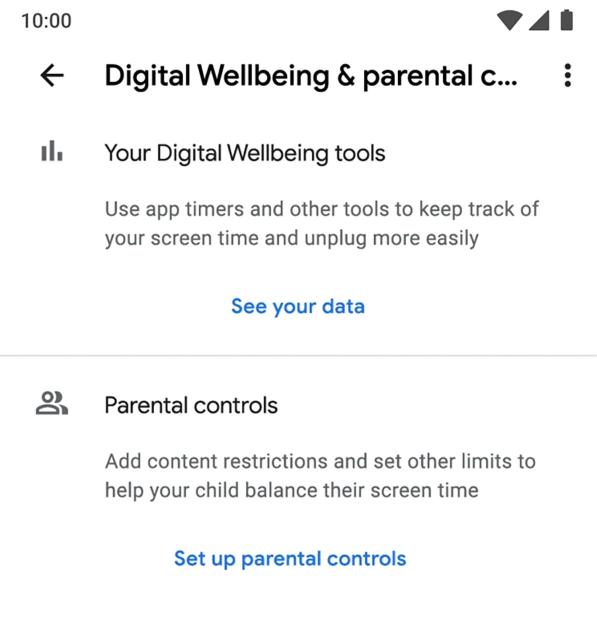 Android phones also have device-level parental control featuresCredit: Google
Once you’ve done that, you can set up loads of limits for the device there and then.
That includes setting:
- Daily limits
- Downtime
- App limits
- Blocked apps
- Web content filters
You can also use Family Link to manage their phone remotely using your own device.
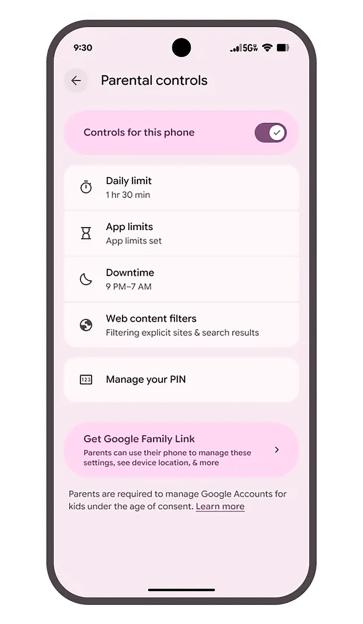 You can set up parental controls to manage usage limits and content filtersCredit: Google
Go into Settings > Parental Controls > Get Family Link, and follow the instructions.
Then you’ll be able to manage things like School Time (where you add extra limits for the hours that they’re at school), as well as location sharing, so you can keep track of their whereabouts.
Once it’s all set up, you can make any changes from your own device without having to touch theirs.
It’s also possible here to set up Google Play limits to restrict what can be downloaded or purchased from the Google Play store, which is Google’s main outlet for apps on Android phones.
FACEBOOK SETTINGS
Under 13s aren’t allowed to use , so that’s a good start.
And for older kids, you’re able to set up Teen Accounts, which you can access in Supervision mode.
This gives you access to a huge range of features, including the ability to:
- See how much time the teen has spent on Facebook each day for the last week, and their average daily time spent for the week
- Set up sleep mode to limit the teen’s use of Facebook during selected days and hours
- Set up a daily limit to limit how long the teen uses Facebook in a day. Parents can choose whether the teen sees a reminder to close the app or is blocked from using Facebook
- See the teen’s Facebook friends
- Manage and approve some of the teens’ privacy settings and sensitive content preferences
- See the people and Pages that the teen has blocked
- View and adjust some of the teen’s profile details settings, including who can see their phone number, email address and other info such as their date of birth
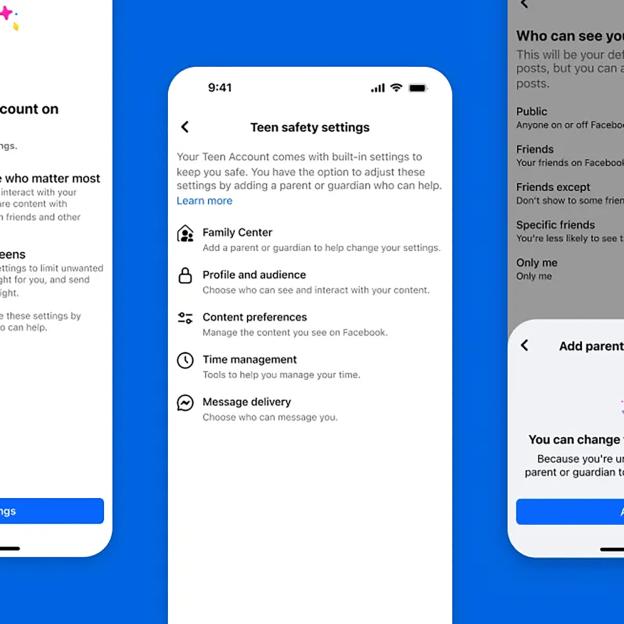 Facebook lets you manage Teen Accounts remotelyCredit: Meta
As well as that, you’re able to adjust their audience settings, which include:
- Who can see their future posts, stories or reels
- Who can see their friends’ list
- Who can see the people, Pages and lists that they follow
- Who can see posts that they’re tagged in on their profile
- Who can comment on their public posts
- Whether anyone can remix their future public reels
- Whether they must review posts that they’re tagged in before the post appears on their profile.
You’ll get a notification if your teen changes any of these settings.
A teenager who is aged between 13 and 15 needs to request your approval to change their settings to be less protective.
Setting Supervision up on Facebook is very simple – but note that you will need a Facebook account.
To set it up, you just need to go to https://familycenter.meta.com/supervision .
Then you can follow the instructions to invite and connect with your child’s account.
INSTAGRAM SETTINGS
is owned by , which also runs Facebook – so it has a very similar process.
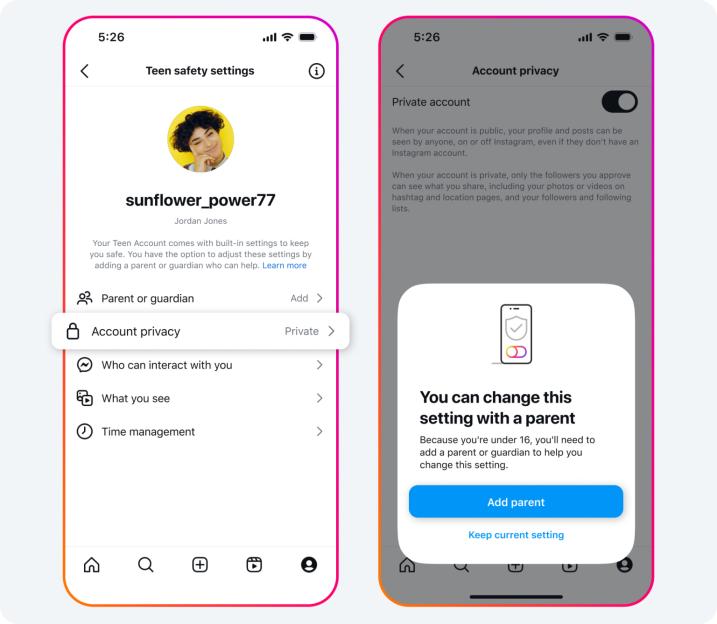 You can keep tabs on your youngster’s Instagram accountCredit: Meta
Like with Facebook, Instagram allows you to manage a using the Family Centre’s Supervision feature.
So set it up, go into Instagram, click on More (hamburger menu) > Settings > Supervision > Create Invite.
Then you can send an invite to your teen, which lets you activate Supervision.
You can then view the topics that your teen has chosen to see on Instagram, and approve or deny requests
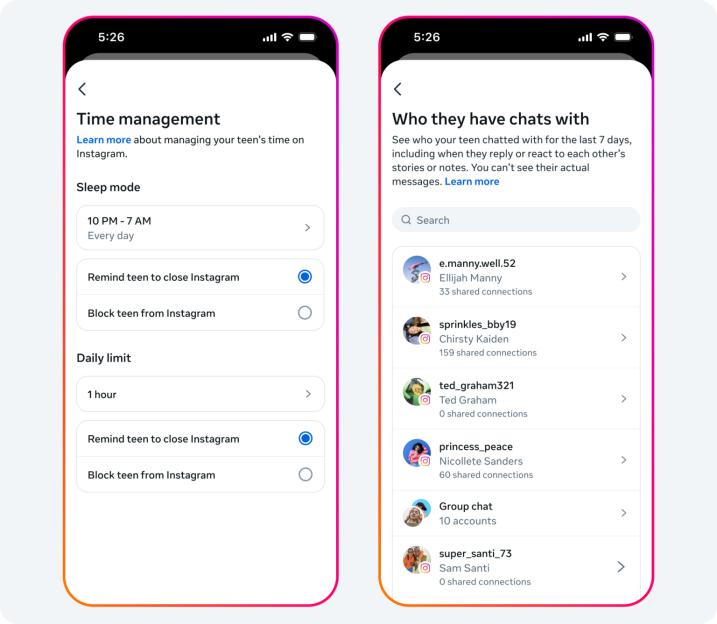 You have lots of options in terms of keeping your teen safe online on InstagramCredit: Meta
As well as that, you can:
- Set time limits
- Set up a sleep mode for certain times of day
- See the time your teen is spending on Instagram
- See which accounts the teen follows
- See which accounts follow them
- See which accounts are blocked
- See the privacy settings of the teen’s account
- See your teen’s settings for who can message them
- See the teen’s settings for who can add them to a group chat
- See the teen’s sensitive content setting
If they try to make the settings less restrictive and they’re under 16, you’ll need to approve it.
TIKTOK SETTINGS
is a smash hit with youngsters – and it’s easy to see why. Even adults see hours fly by while scrolling on the app.
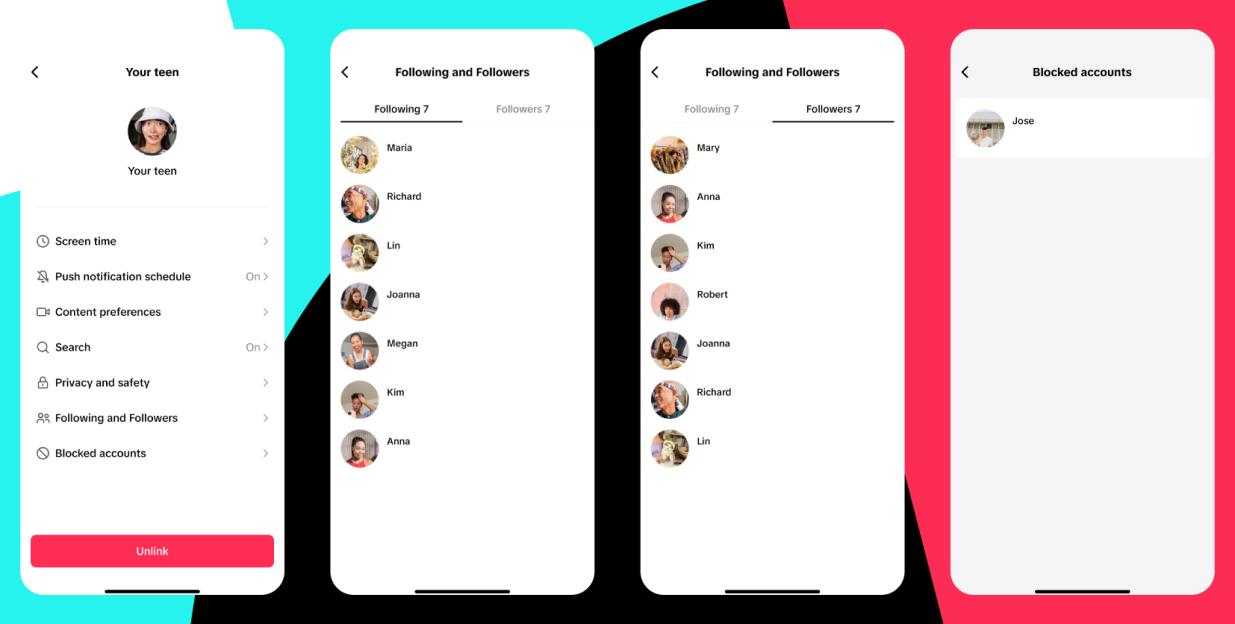 TikTok has a feature-packed parental controls sectionCredit: TikTok
For TikTok, the main feature that you want to set up is Family Pairing.
To do this, go into TikTok and tap on Profile, then Menu > Settings and Privacy > Family Pairing > Continue > Parent > Next.
Then you can link your account to your child’s, and manage it through that same Family Pairing menu.
Once that’s done, you’re able to manage loads of aspects of their TikTok life, including:
- Limiting their daily screen time
- Viewing how much time they spend on the app
- Scheduling time away
- Muting push notifications
- Viewing their TikTok feed topics
- Filtering keywords
- Letting them view the STEM feed for science, technology, engineering and maths content
- Activating Restricted Mode to limit inappropriate content
- Notifications about your teen’s activity
- Notifications for when they post content
- Limiting the ability to search
- Deciding whether the account is private or public
- Viewing blocked accounts, following, and follower lists
- Deciding whether the account can be recommended to others
- Deciding who can send messages or message requests
- Deciding who can view their liked posts
- Choosing who can comment on their posts
- Choosing who can reuse their content
- Managing their blocked accounts
It’s a huge list of options, and gives you significant control over what they get up to on TikTok – as well as who they can interact with.
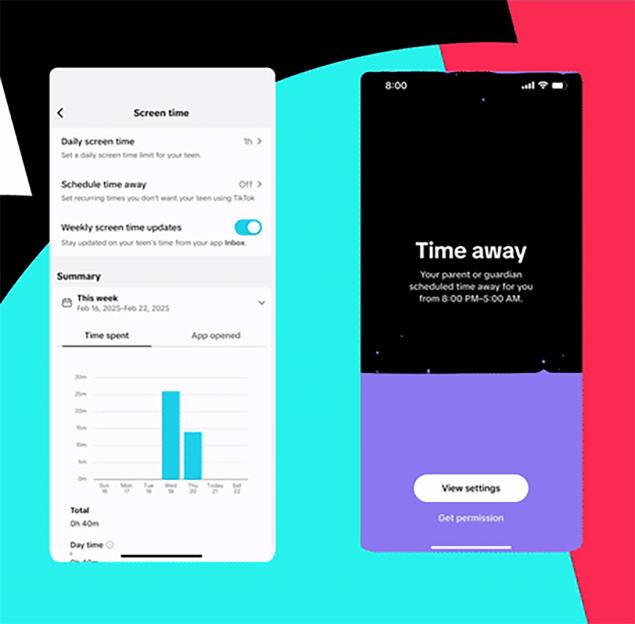 Once you’ve linked your youngster’s TikTok account to your own, you can easily review and limit their app usageCredit: TikTok
So it’s worth taking the time to review the list.
And remember: you can always go back in and change the settings at any time.
YOUTUBE SETTINGS
recently , making it even easier to keep tabs on your youngster.
If you’ve got a youngster under 13 years old, your best bet is YouTube Kids.
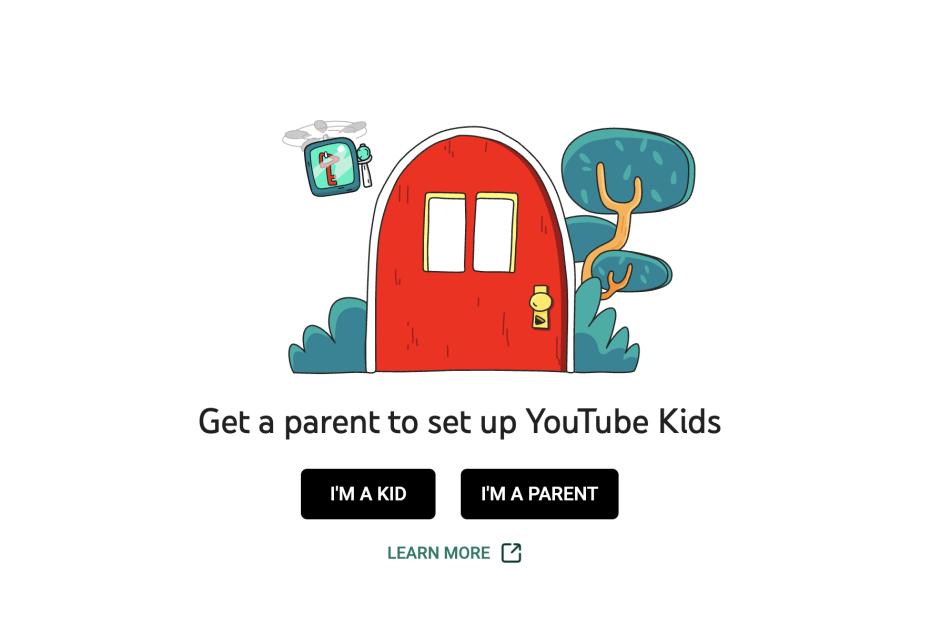 There’s a special version of YouTube called YouTube Kids that is designed for young childrenCredit: YouTube
It’s an app purpose-built for very young children, and is meant to be safe even for independent watching.
You can make child profiles, decide on content types, block videos or channels, see what they’re watching, and set timers to limit screen time.
For older youngsters, i.e. teens, you want to use YouTube’s Supervised experience.
It works using the same Family Link process that I mentioned earlier for Google’s Android phones.
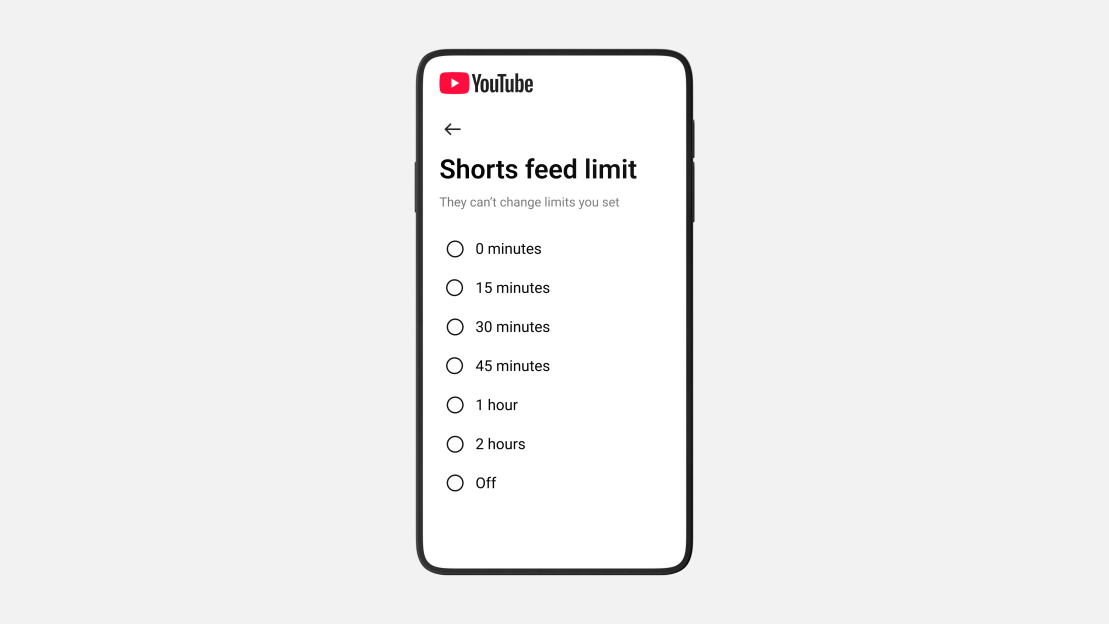 YouTube now allows you to set a ‘zero’ time limit for YouTube Shorts specificallyCredit: YouTube
You just go into the settings and follow the instructions to create a pairing between your accounts.
Then you’ll be able to adjust their account settings.
That means you can change their content settings, pause or clear their history, block channels, and even remove their access to YouTube.
Recent updates mean that you can now set zero time limits for YouTube Shorts (the TikTok-style short-form video feed), or any other time limit that you like.
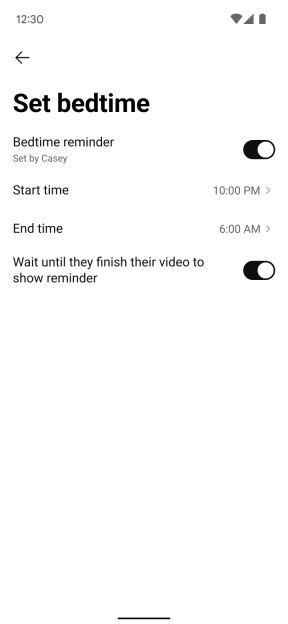 You can set a YouTube bedtime in just a few tapsCredit: YouTube
And you can also set Take a Break and Bedtime reminders too.
SNAPCHAT SETTINGS
might prove more of a mystery to parents compared to YouTube or Facebook, as it tends to be far more popular with younger people.
For parental controls, you’ll want to head into Snapchat’s Family Centre.
First, you’ll need to download the Snapchat app yourself. Then sign up and add your child on Snapchat.
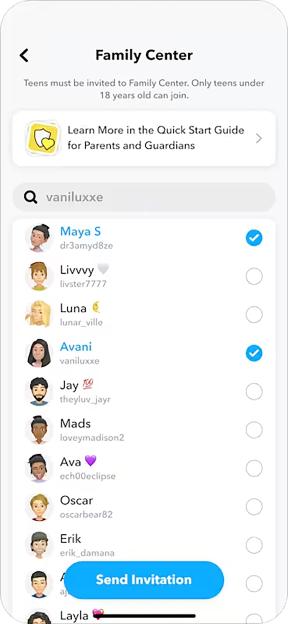 Snap has a Family Centre feature to make it as easy as possible to keep tabs on your teenCredit: Snap Inc.
Now go to Settings > Family Centre and then . They’ll receive an invitation to accept.
From there, you’ll be able to make changes to a vast suite of parental controls.
You can:
- View their friends
- See who they’re chatting with
- Restrict sensitive content
- Disable the My AI chatbot
- Report concerns
- Request their location on Snap Map
- View their privacy and safety settings
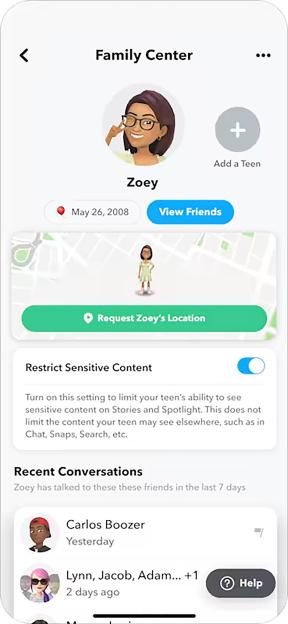 You can even request your child’s location using Snapchat parental controlsCredit: Snap Inc.
You can make changes at any time, so don’t stress if you don’t get it right the first time.
ROBLOX SETTINGS
Last, but by no means least, is – a titan of an app that sees as many as 380 million people logging on each month.
Roblox is a video game, but in some ways, it also functions as a social network.
Youngsters can chat with pals and hang out with total strangers online, so you’ll want to .
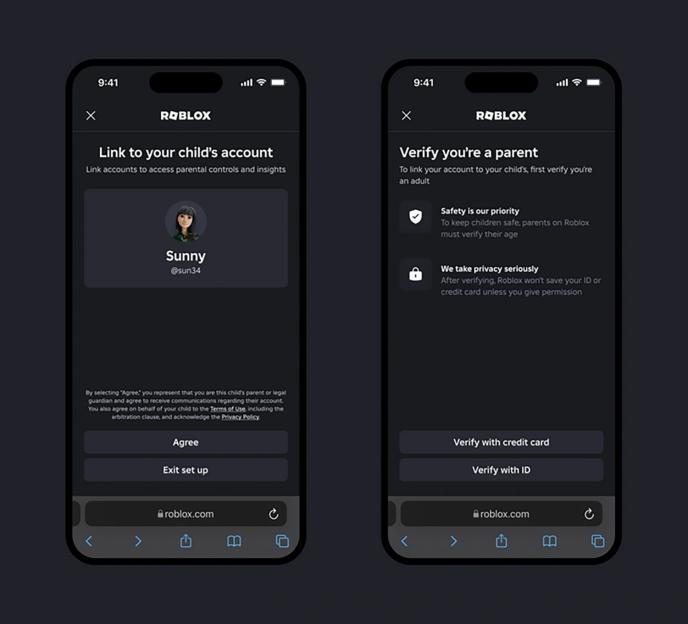 Roblox might look like a video game, but it also functions as a social space for youngsters tooCredit: Roblox
You’ll need to create your own Roblox account if you want to .
Just go into More > Settings > Parental Controls on their accounts, then choose Add Parent.
Then you can follow the steps to link your account to theirs.
Once that’s done, you can make sweeping to their Roblox experience.
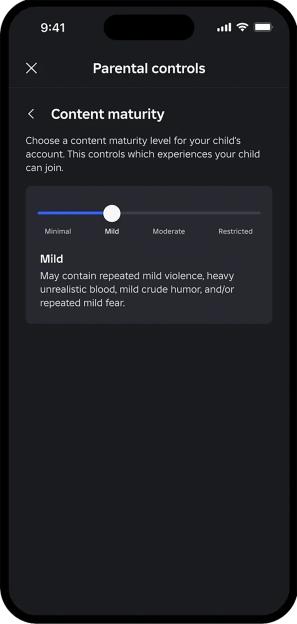 You can change the content maturity for experiences that your child accesses in the gameCredit: Roblox
You’ll be able to:
- Manage their content maturity
- Block experiences
- Remove content with sensitive issues
- Limit who they communicate with, if at all
- Review private games they play
- Review their connections
- Set up spending limits
- Manage screen time
Spending limits are extremely important, as Roblox allows purchases of a digital currency called Robux.
There have been plenty of horror stories of youngsters making grand purchases in totalling hundreds of even thousands of pounds.
So make sure to restrict their spending in the game to prevent any unwanted bills.
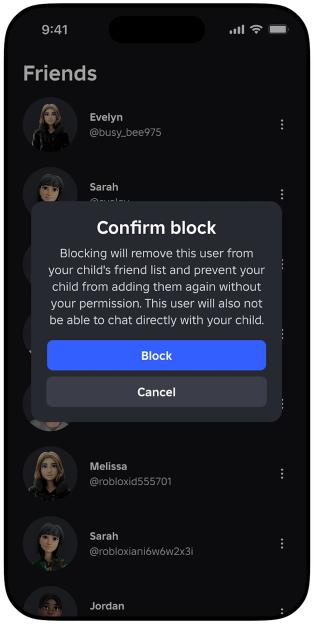 You can block users from your child’s friends list, preventing future interactions