TV lovers need to do one thing this week to keep their telly up-to-date as broadcasters make big changes.
If you are flicking through your channels over the you may find things look different.
 A number of TV channels have changed this week Credit: PA
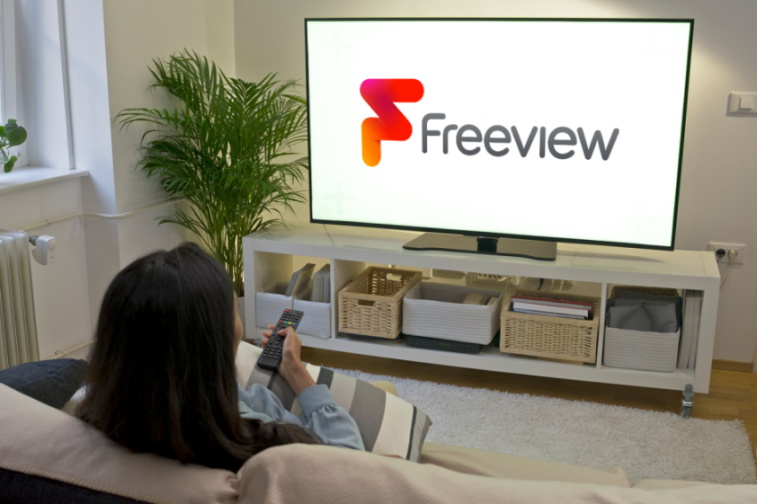 Freeview users may be asked to retune their devices Credit: Getty / Freeview
On May 20, confirmed that a number of its channels are changing – from being renamed to moving around the telly planner.
users are advised to retune their devices amid the changes. This will allow your TV guide and channels to stay fresh.
Many Freeview devices now prompt you to retune or rescan when a new service launches or a change has taken place. Typically, all you need to do is press OK or retune.
If yours doesn’t do this, you may need to do a manual reset.
Once sorted, you will notice that Hobbycraft TV on channel 97 is now listed as Shop Unlimited.
Plus, Great! Romance Mix is now called Great! TV +1, on channel 67.
Great! Movies is moving from channel 62 to 61. And Great! TV +1 is moving from channel 61 to 62. The two channels are flipping around.
Freeview states: “Channels continue to evolve on Freeview with individual channel providers making the decision to move, add or remove channels.
“Freeview continues to ensure that audiences can enjoy a rich and varied content offering.”
You can keep up with channels changing in your area on Freeview’s Channel Checker .
If you are a Sky user, you should also be aware that a number of .
How to manually retune a TV
Freeview says retuning your TV is a straightforward process.
You need to:
- Press menu on your box or TV remote control
- Select set up, installation, update, or a similar option. If you’re asked for a password, the default code is 1234 or 0000.
- Select first-time installation (sometimes called factory reset, full retune or default settings).
- Press OK if your equipment asks if it’s OK to delete existing channels, then your retune should start automatically.
- If prompted, save the channels that are found.